
Reason Codes
Categorize Inventory Transactions with Reason Codes
Reason Codes are individual on each DataNinja site, and can be applied to any and/or all of the Reason Code Actions. Reason Codes are way to categorize certain inventory transactions within DataNinja and tie them to specific financial accounts for improved tracking of inventory costs.
Why Reason Codes Matter?
Reason Codes help explain why an inventory transaction happened and how that transaction should be categorized for operational, quality, and financial reporting.
Without Reason Codes, inventory changes may be recorded only as quantity adjustments or general inventory movement. This can make it difficult to understand whether inventory was adjusted because of damage, failed inspection, expiration, cycle count correction, production scrap, warehouse handling error, or another business reason. Reason Codes help customers avoid losing important context behind inventory changes.
In DataNinja, Reason Codes allow teams to:
- Capture the business reason behind inventory adjustments, scrap, and other inventory-related transactions.
- Improve inventory traceability by documenting why inventory changed.
- Support quality and audit readiness by maintaining a history of transaction reasons and usage.
- Improve financial reporting by connecting specific transaction reasons to the appropriate financial accounts.
- Reduce the risk of all adjustments being grouped into a generic inventory shrinkage account.
For NetSuite customers, Reason Codes are especially important because they help determine which financial account is impacted when certain inventory transactions are completed. This allows customers to separate different types of inventory impact, such as manufacturing scrap, damaged materials, expired inventory, QC rejection, or cycle count corrections, instead of treating all adjustments the same way.
Once Codes are set up, you can view the creation/edit history of the Code as well as all of the transactions where the code has been used. To view those, click the dropdown in the Actions column and select 'History' or 'Usage', respectively.
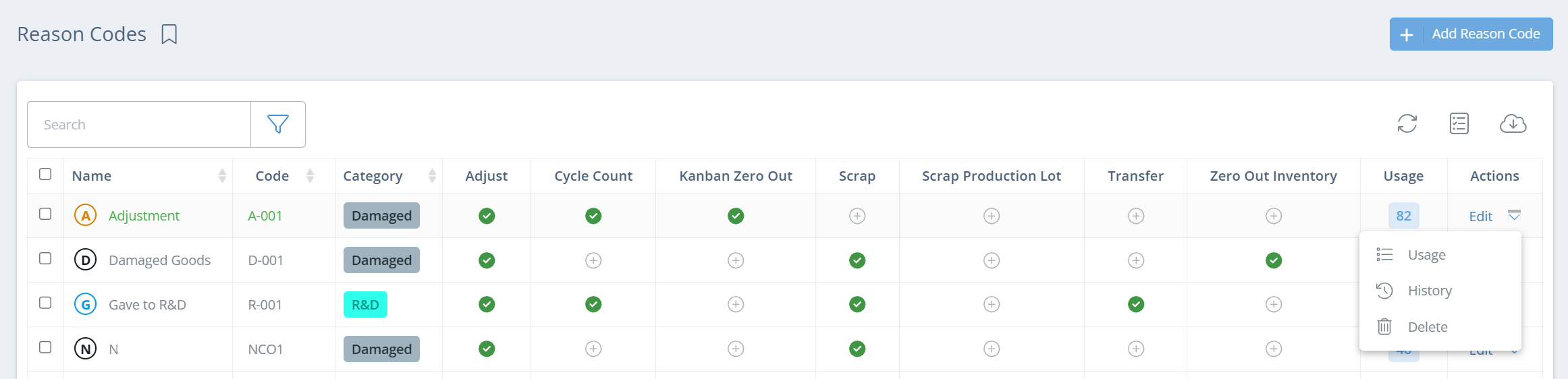
Screencap from v4.21.264.116
Creating a Reason Code
To create a Reason Code, click on the gear icon in the top right, click on All Lists, then click on "Reason Codes" on the new page. From the Reason Codes page, click the "Add Reason Code" button in the top right.
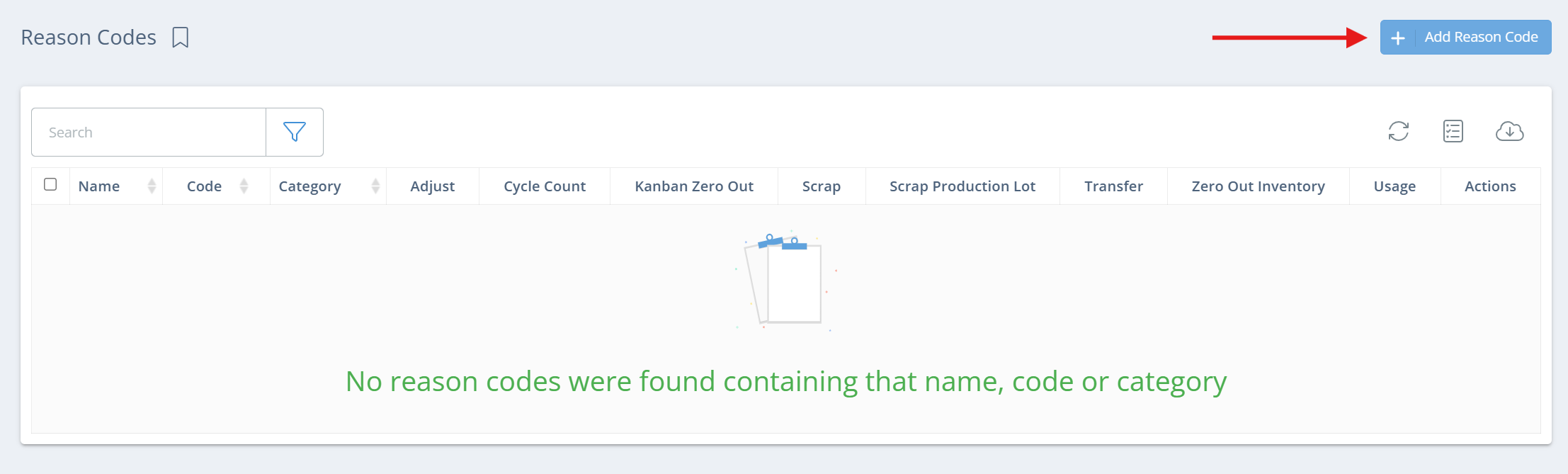
Screencap from v4.21.264.116
In the new aside, enter a name for the Reason Code, and select a category. If there are no categories, or you want to create a new one, just type the name of the category and click in the dropdown to create it.
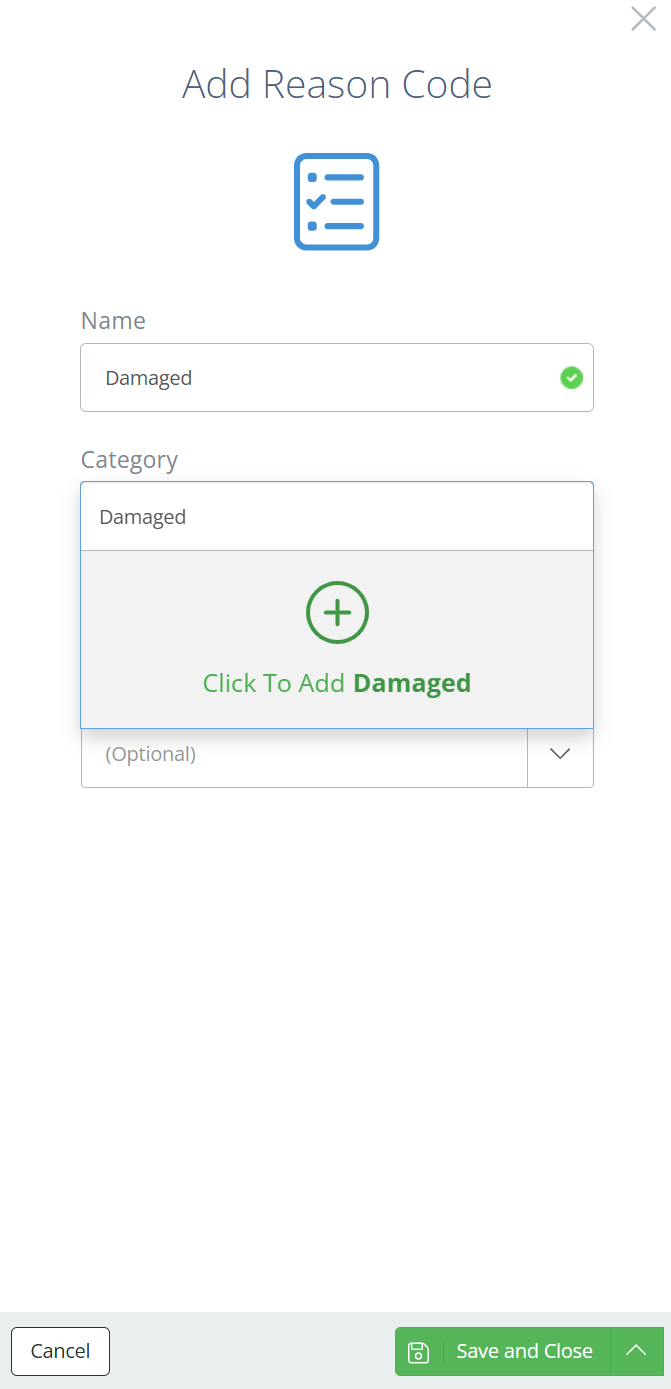
Screencap from v4.21.264.116
Now select the actions you want the Reason Code to be available during. Note that selecting at least 1 action will impact future transactions of that type, and the adjustment aside will then have the option to select that Reason Code.
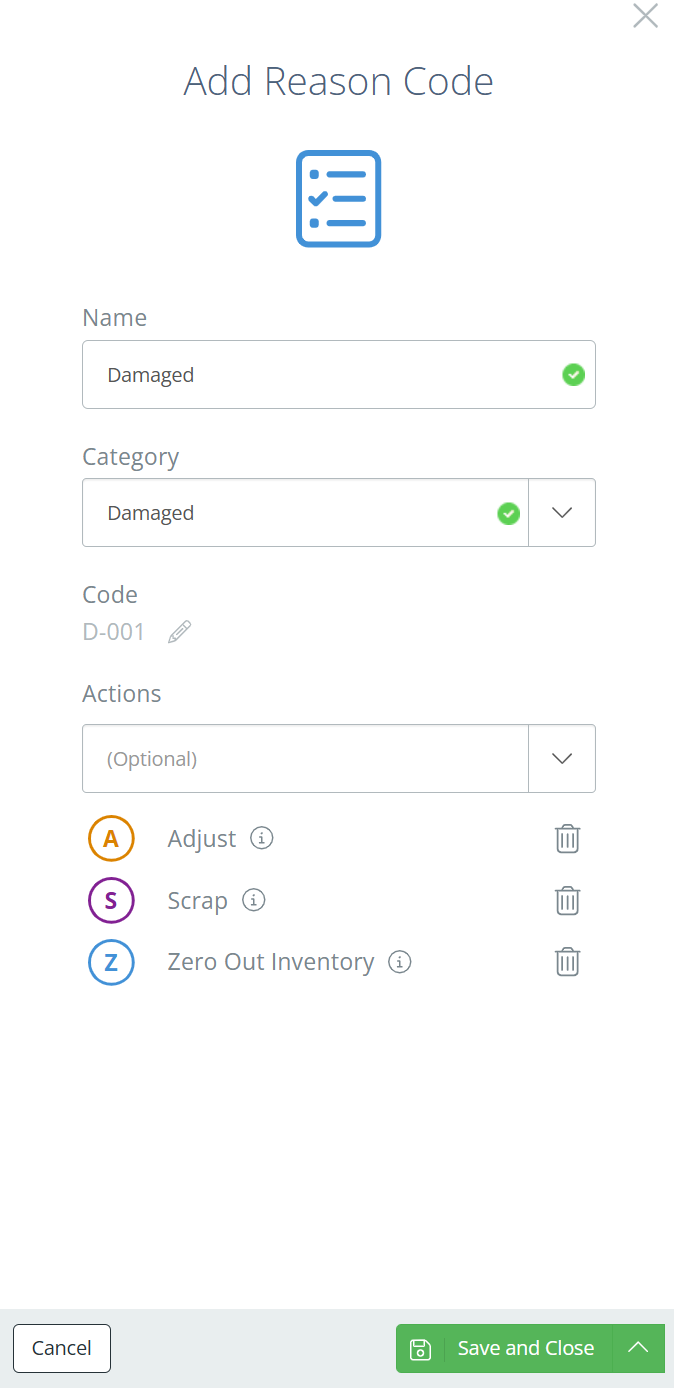
Screencap from v4.21.264.116
For example, if the Reason Code is active on 'Adjust', then the next time an adjustment is attempted, an additional field will show in the aside, as shown below.
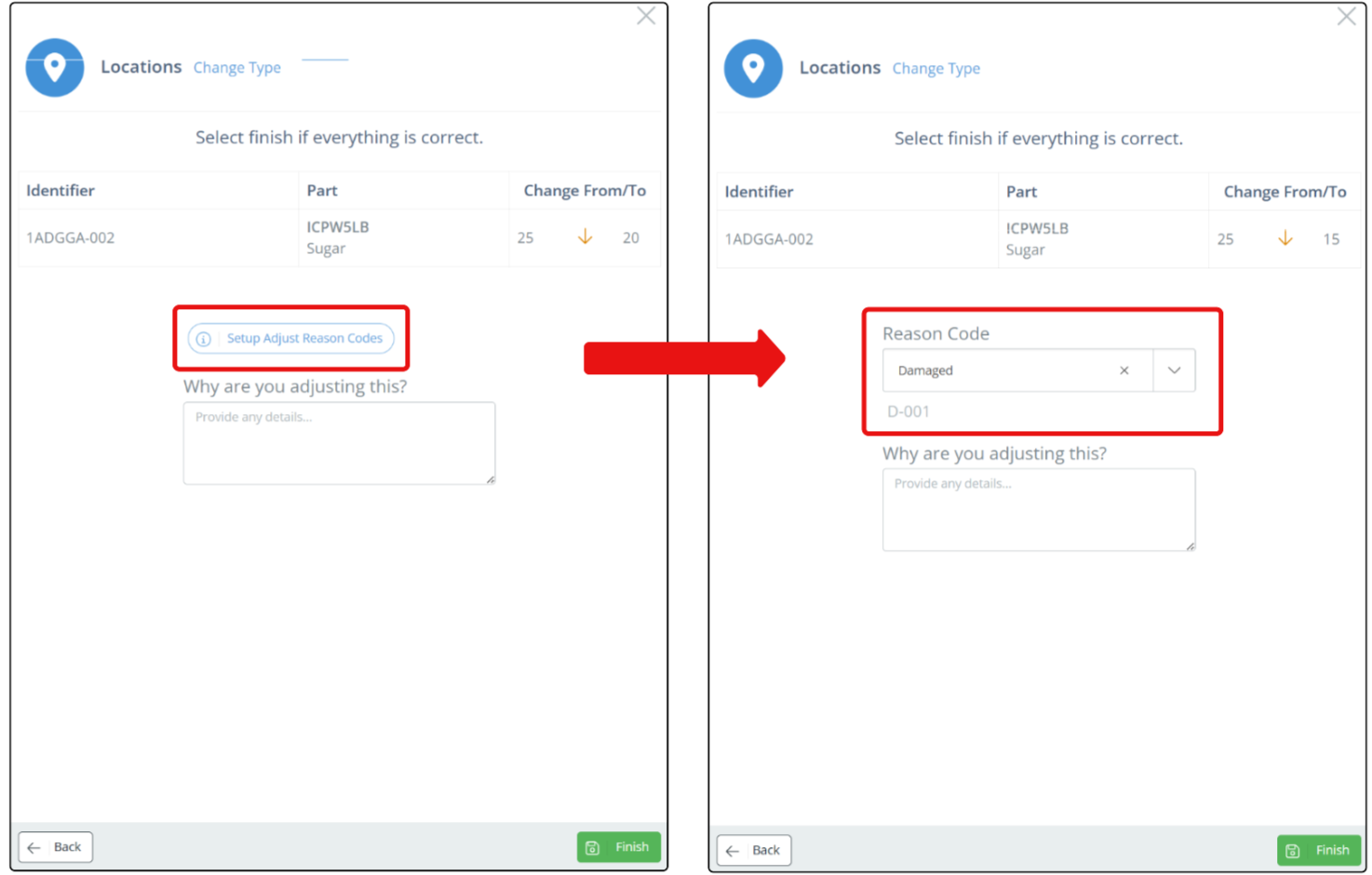
Screencaps from v4.21.264.116
If an account is specified on the Code, then that account will show any financial impact from the completed transaction.
Reason Codes and NetSuite Financial Accounts
When DataNinja is integrated with NetSuite, Reason Codes can be used to route certain inventory transactions to the correct financial account.
This is important because different inventory changes may have different financial meaning. For example, production scrap, expired material, damaged inventory, and cycle count corrections may not all need to hit the same account.
If a financial account is selected on the Reason Code, DataNinja uses that account when the related transaction is completed. Because this can override NetSuite configuration, customers should confirm that the account selected in DataNinja aligns with the intended NetSuite accounting setup.
Once the Reason Code(s) are set up, you can edit the Actions that each Code is used on by clicking on the '+' button in the corresponding column, or the green check mark if the Code is already active.
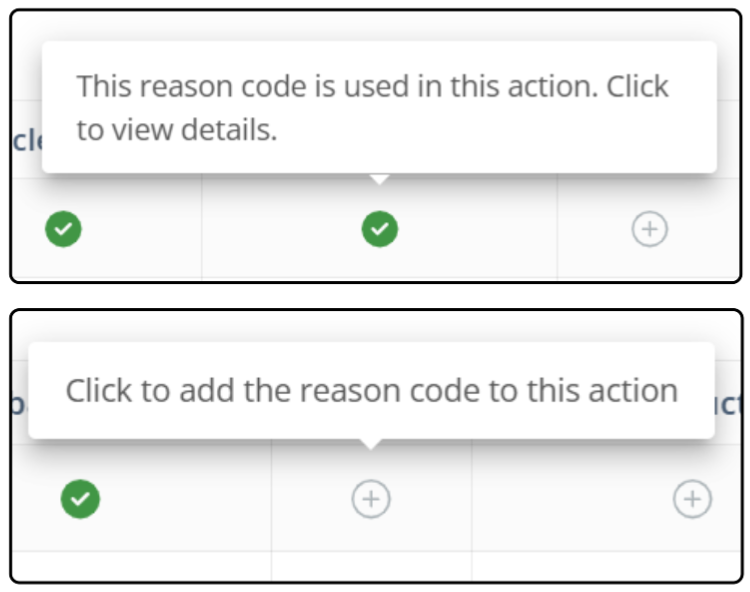
Screencap from v4.21.264.116
An aside will open, for managing the Reason Code Action. This aside can also be viewed by clicking "Edit" in the Actions column on the Reason Code Actions page (see the Reason Code Actions guides page). In the aside, you can select whether the Action requires a note, and which Codes are associated with the Action. A default Code can be selected by clicking the star icon under the Code, and the star will turn green when set as the default.
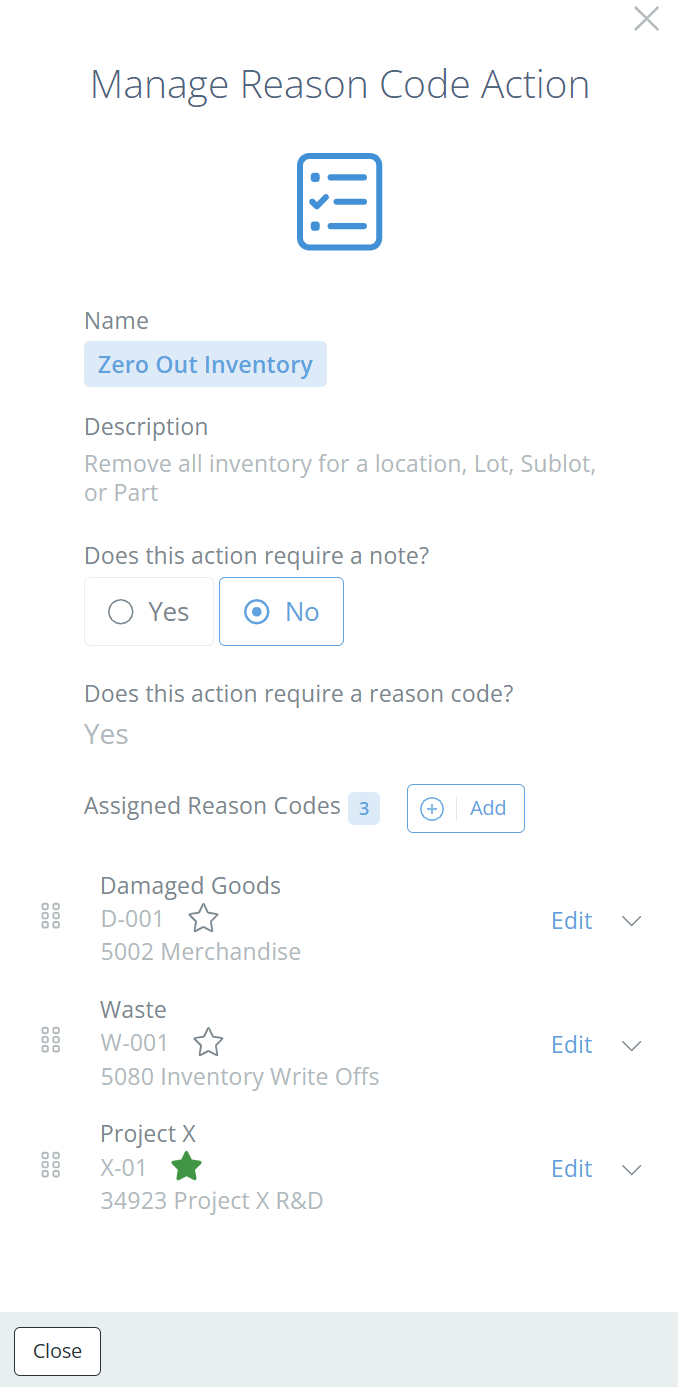
Screencap from v4.21.264.116
Find the Reason Code you want to make changes to, then click "Edit". In the new Reason Code aside, you can again choose if the Code should be the default for the Reason Code Action, but you can also select a financial account to associate with Reason Code. Any account within your Chart of Accounts should be available for selection.
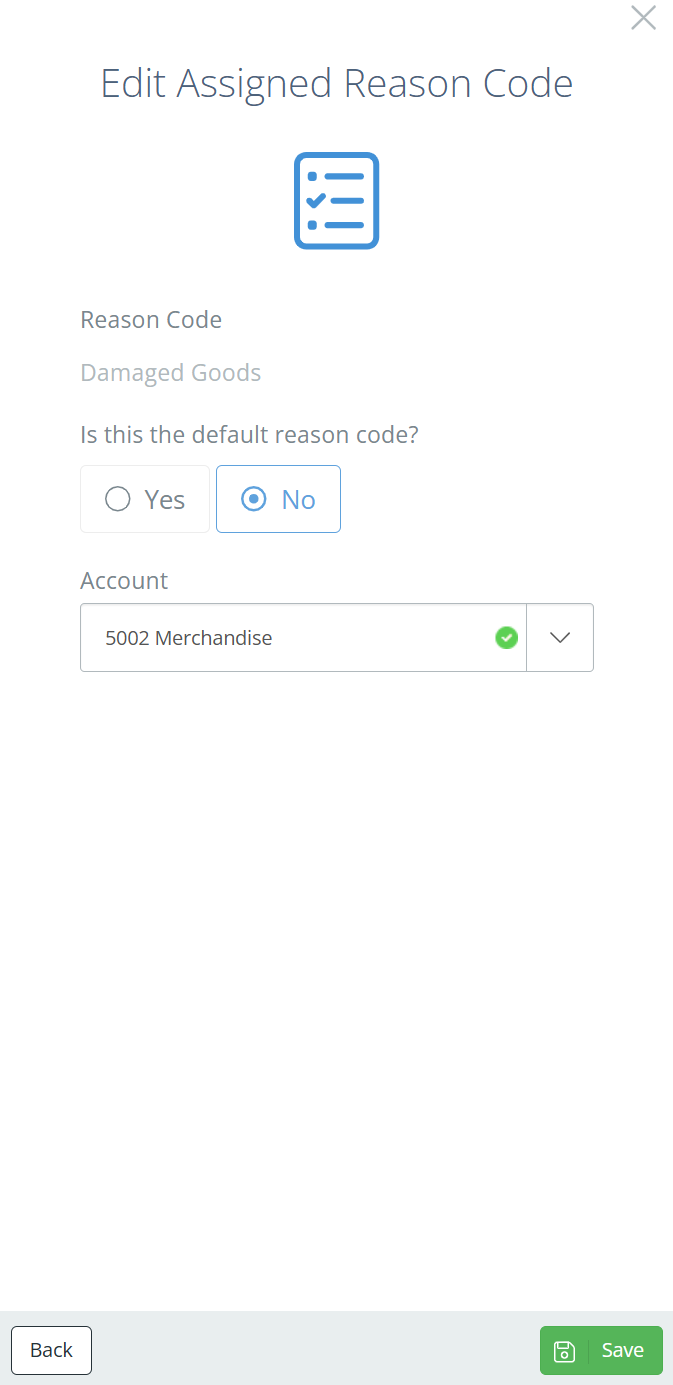
Screencap from v4.21.264.116
The account selected will determine which financial account is hit when transactions marked with this Reason Code are completed.
You can also access this aside from the Reason Code Actions page; see the Reason Code Actions page for more information.
Reason Codes Best Practices
- Create Reason Codes that are specific enough to support reporting, but not so detailed that users are unsure which one to select.
- Align Reason Codes with the customer’s quality, warehouse, production, and accounting processes.
- Use separate Reason Codes when different types of inventory changes should hit different NetSuite financial accounts.
- Avoid using one generic reason code for all inventory losses unless all losses should be treated the same financially.
- Consider requiring notes for actions where additional explanation may be needed, such as scrap, reject, or manual adjustment.
- Periodically review Reason Code usage to identify trends, recurring issues, or codes that are being misused.
- Setting Reason codes in DataNinja will override any NetSuite configuration, so best practice is to ensure that NetSuite and DataNinja point transactions to the same account for easier tracking.
Updated 2 months ago
What’s Next
Reason Codes are commonly used during inventory adjustments and scrap transactions to explain why inventory was changed or removed. For more information, see the Inventory Adjustment Page