
Reason Code Actions
Set Rules for Different Types of Inventory Transactions
Certain inventory transaction types, called Reason Code Actions, can now be connected to specific financial accounts using Reason Codes so they don't hit inventory shrink. There are 7 Actions:
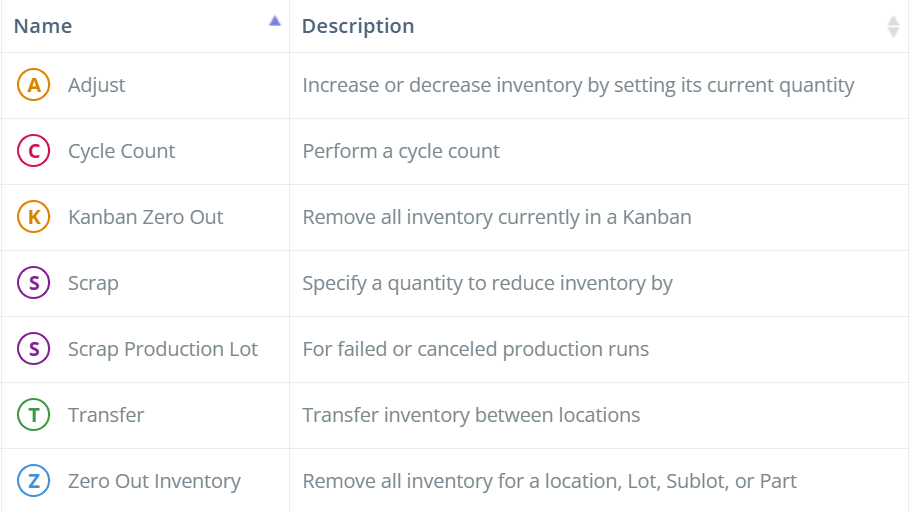
Screencap from v4.21.264.116
Setting Up Reason Code Actions
Reason CodesReason Code Actions are easier to set up after Reason Codes have been created, so before continuing, make sure that your site has Reason Codes set up; see our Reason Codes page for more information.
On the Reason Code Actions page, click 'Edit' in the Actions column to open the aside. Here, you can control if a note is required to be entered when this Reason Code Action is used, as well as which Reason Codes can be selected during the transaction. Click 'Add' to add additional Codes, or click the dropdown arrow next to a Code and select 'Delete' to remove it from the list. The default Reason Code for the Action will be marked with a green star icon; click on the star icon to toggle the default on/off.
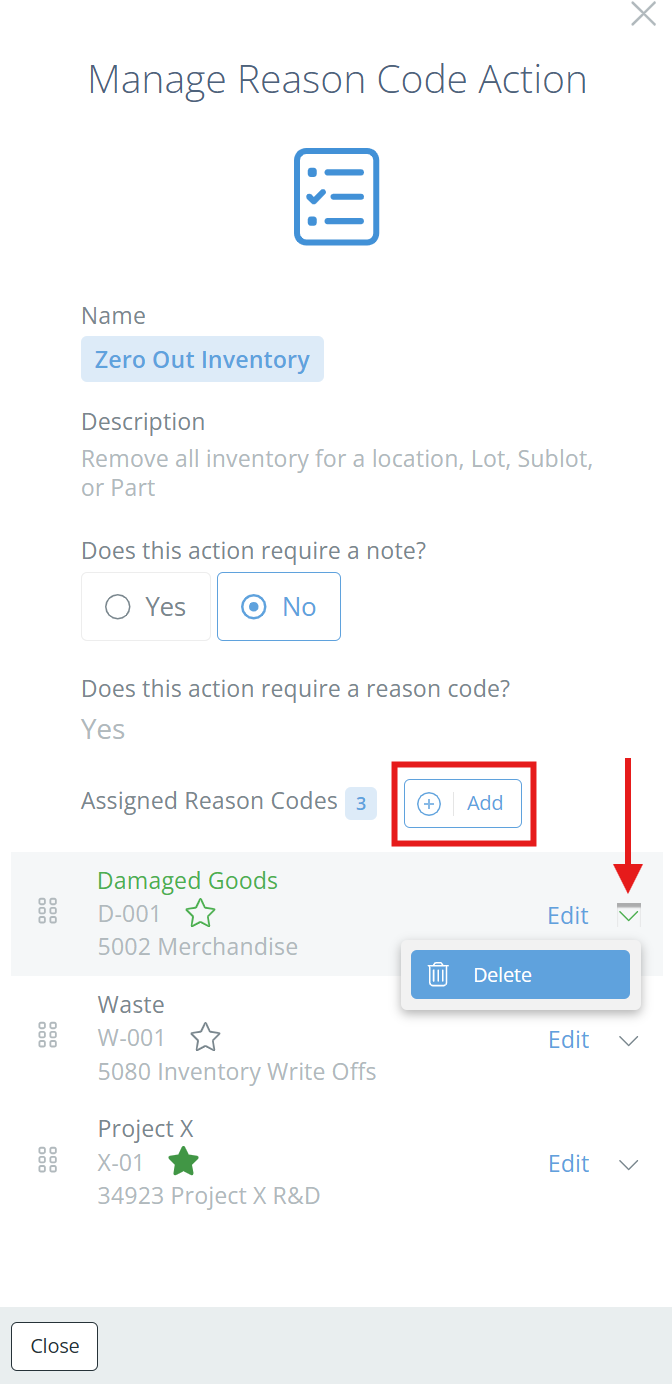
Screencap from v4.21.264.116
If you click 'Edit' next to a Reason Code, you can link the Code to a financial account. The account selected will determine which financial account is hit when transactions marked with this Reason Code are completed.
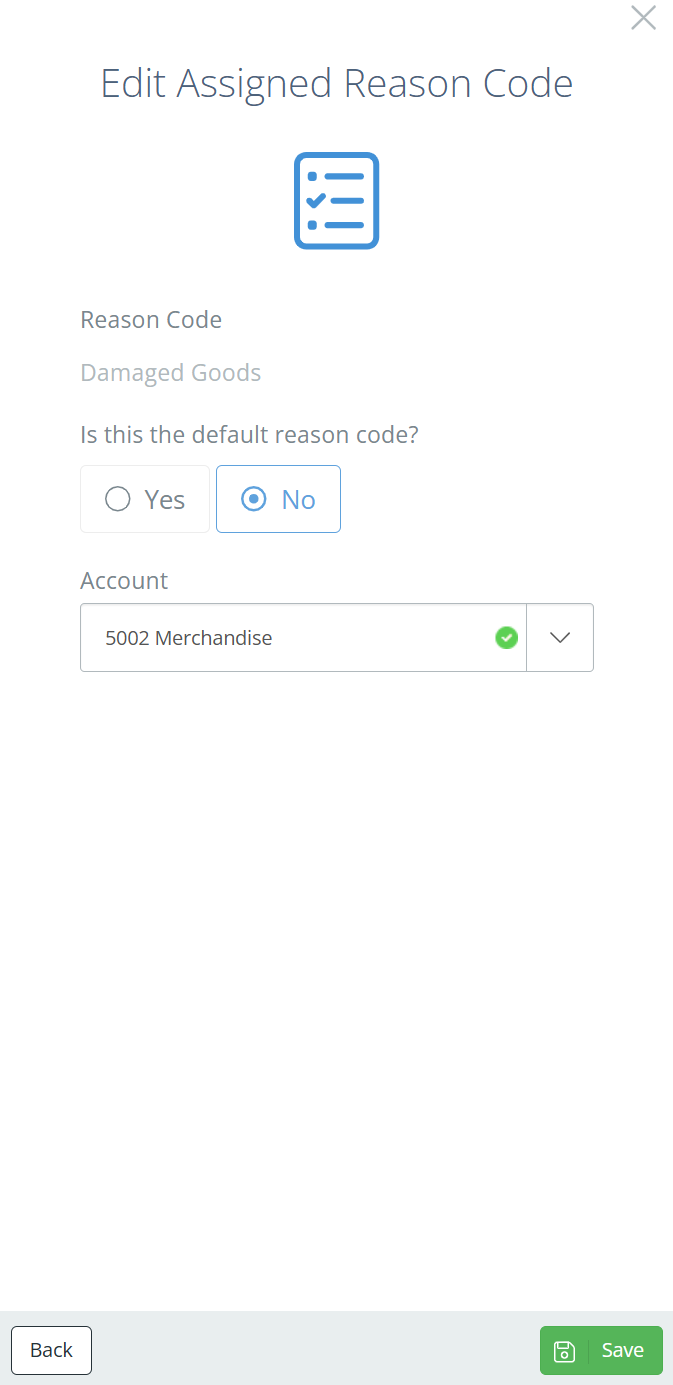
Screencap from v4.21.264.116
NetSuite ConfigurationNote that this will override any NetSuite configuration, so best practice is to ensure that NetSuite and DataNinja point transactions to the same account for easier tracking.
Updated 5 months ago