
Bills of Materials (BOM)
Where it all comes together
Anything you want to track inventory of needs a part number. The part number uniquely identifies what the inventory item is, while the BOM tracks the "recipe" for how to make the inventory, if a particular part is generated via the consumption of other parts (like a Finished Good or Sub-Assembly).
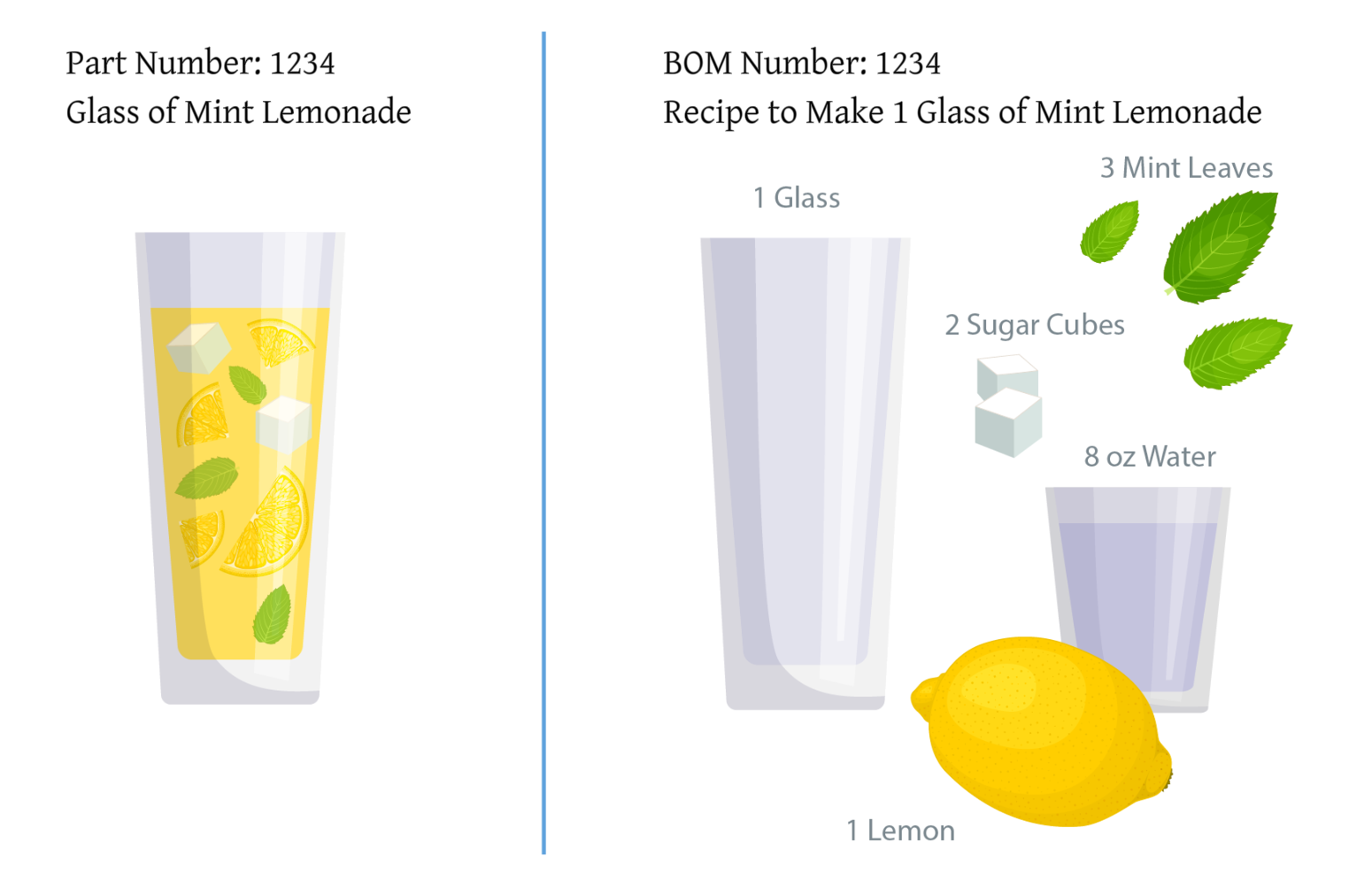
The BOM number is the part number that will be produced
The BOM is where you map your manufacturing process in DataNinja so that you can control how ingredients come together to produce inventory of a product.
A DataNinja BOM contains:
- Configuration
- Required parts
- Attributes (customizable data collection and verification web-form building blocks)
- Sampling (AQL)
- Approvals
- Equipment
LingoDepending on your business processes, one or more of the following terms may be synonymous with what DataNinja means when referring to a BOM: Recipe, Formulation, Routing, MMR etc.
Create a New BOM
BOMs Should Be Created in NetSuite
All BOMs should initially be created in NetSuite and then synced to DataNinja. Once the BOM is in DataNinja, further changes can be made to it.
Additionally, once a part has a BOM in NetSuite, new BOM revisions can be created in DataNinja that don't exist in NetSuite and DataNinja will overwrite Work Order lines based on the BOM revision selected in DataNinja even if it conflicts with the revision selected in NetSuite. This workflow allows greater flexibility in fine-tuning production processes.
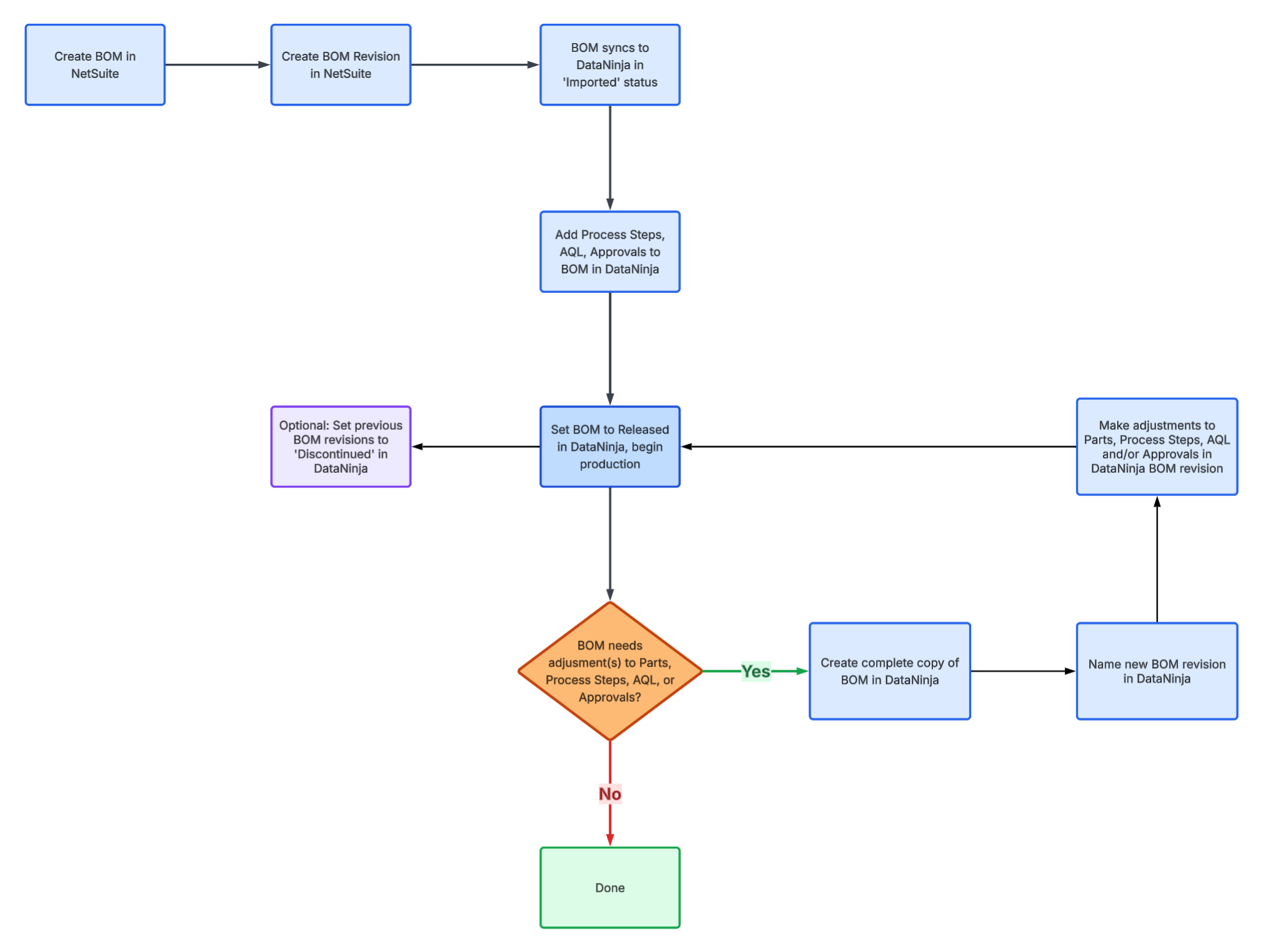
If a manufactured part has at least 1 BOM and BOM revision in NetSuite, new BOM revisions can be created in DataNinja without updating the existing revision in NetSuite
Workflow RestrictionsIn certain cases, all BOMs and BOM Revisions must originate in NetSuite.
- If you use (or plan to use) NetSuite's MRP
- If you use Parent/Child Work Orders
In either scenario, NetSuite must be the source of truth regarding what materials get consumed during production, though DataNinja will still control process steps, AQL, and Approvals.
Edit a BOM in DataNinja
Only BOMs in Imported status can be edited. Released BOMs are ready to be used in production, and if a production record utilizes the BOM then the BOM can no longer be changed to Imported status, for traceability purposes. If you need to edit a Released BOM, and it can't be switched back to Imported, then you will need to create a copy (revision) of the BOM and make the changes in the new revision. See Copy a BOM for details.
To edit a BOM, go to the BOMs tab and click on the relevant BOM, then click 'Edit' next to the BOM name.
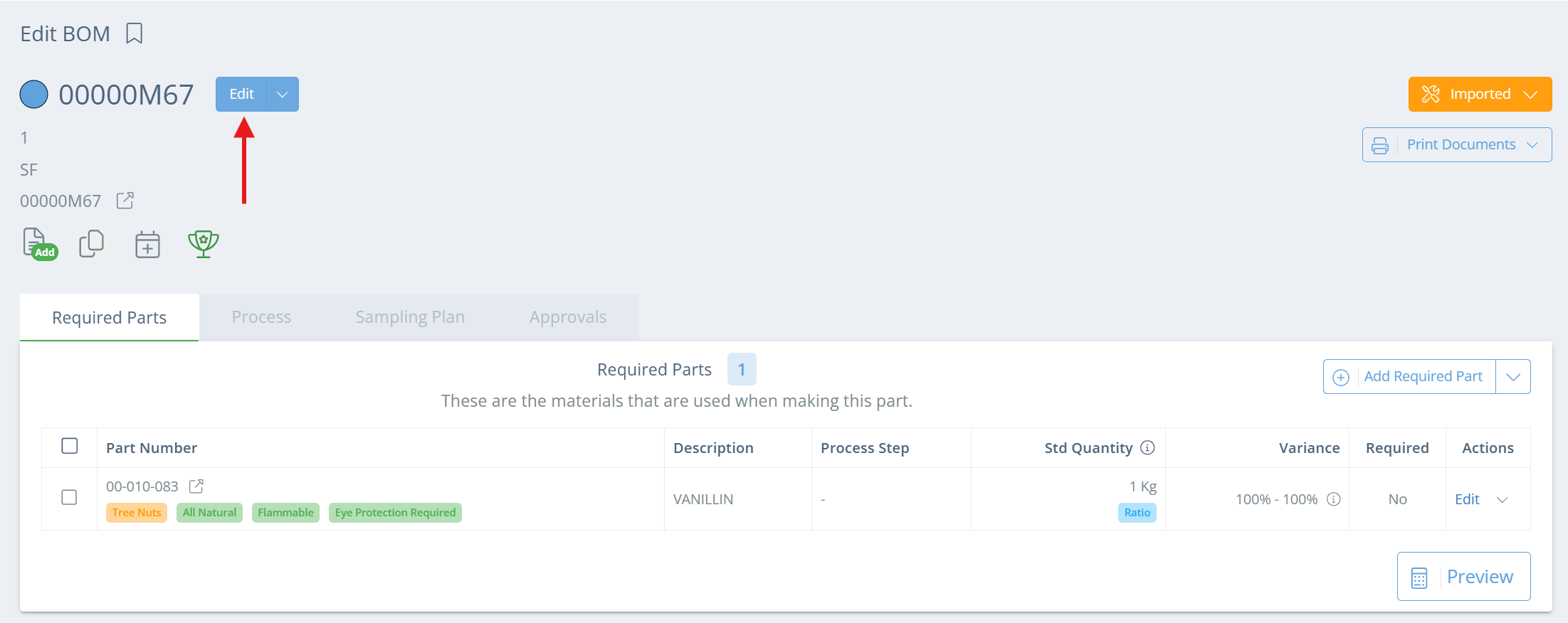
Screencap from v4.21.264.294
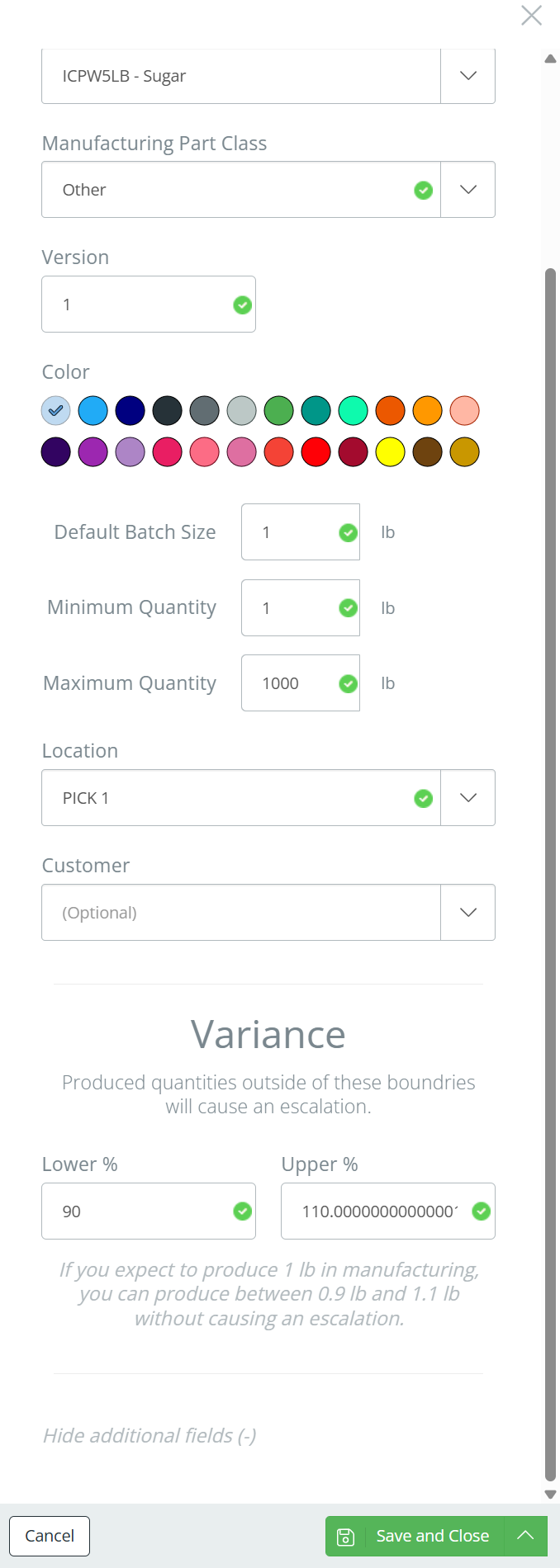
In the new aside, you can change the BOM name, Manufacturing Part Class, Version, and Color. BOM versions for a part must be unique. Adjust the necessary settings, and review the additional fields for final changes.
Additional Fields on BOMs
By clicking 'Show additional fields (+)' when creating/editing a BOM, you can specify some additional settings.
Default Batch Size
This specifies the default quantity to produce when the BOM is being schedule for production. The standard default is 1, but if following this BOM will typically create a greater or lesser quantity of the part, then adjust the number accordingly. This field uses the same Unit of Measure (UOM) as the part.
Minimum Quantity
This specifies the minimum quantity that you can schedule to be produced. The standard default is 1, but if the Default Batch Size is greater than 1, you can adjust the Minimum Quantity to be greater than 1, so long as it is less than or equal to the Default Batch Size. This field uses the same Unit of Measure (UOM) as the part.
Maximum Quantity
This specifies the maximum quantity that you can schedule to be produced per batch. The standard default is 1000, but can be adjusted as long as it is greater than or equal to the Default Batch Size. This field uses the same Unit of Measure (UOM) as the part.
Location
The standard default is the location associated with the part. This is where inventory will be produced into once the BOM is used in production.
Customer
If this part is going to be sold or shipped directly to a specific customer, you can select which customer in this field, or leave it blank.
Variance
The standard default variance is between 90 and 110 percent. Going above the maximum or under the minimum will trigger an escalation. The percent is based on the scheduled quantity, per batch. You can adjust both the upper and lower limits, if you need to be more or less strict about the amount produced in an order.
Screencap from v4.21.264.294
Click 'Save and Close' when all fields changes have been made.
Copy a BOM
Copying a BOM makes BOM edits easier, as you don't have to start from scratch to create a new BOM. It's also helpful when multiple parts have similar manufacturing processes or consume similar parts, since you can copy required parts and process steps to a BOM that produces a completely different part. Copies can be made from BOMs in any status.
To copy a BOM, click on the BOMs tab and open the relevant BOM. Below the BOM name on the Edit BOM page, find the copy icon and click on it.
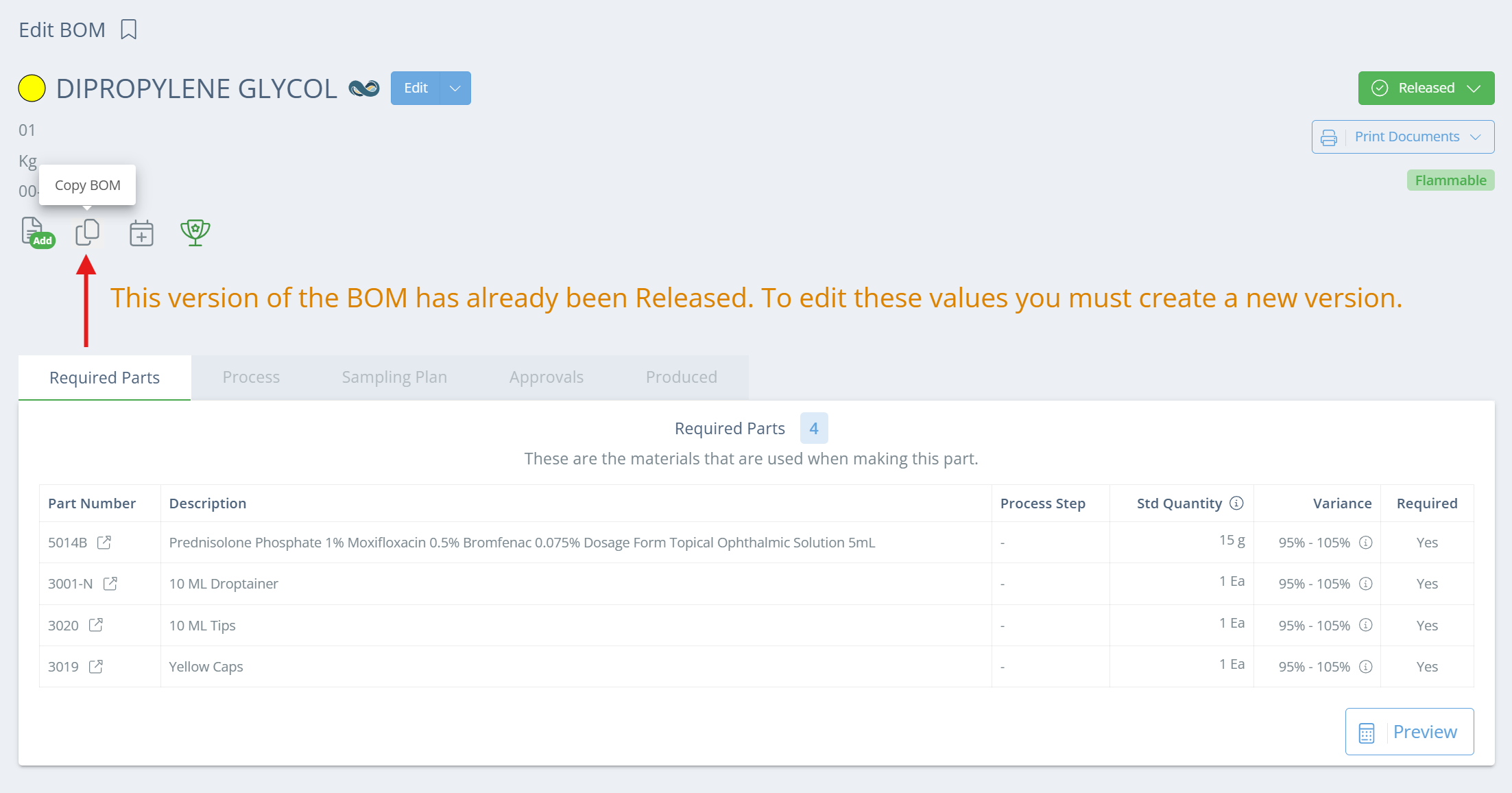
Screencap from v4.21.264.294
In the dropdown that appears choose from one of the three copy options.
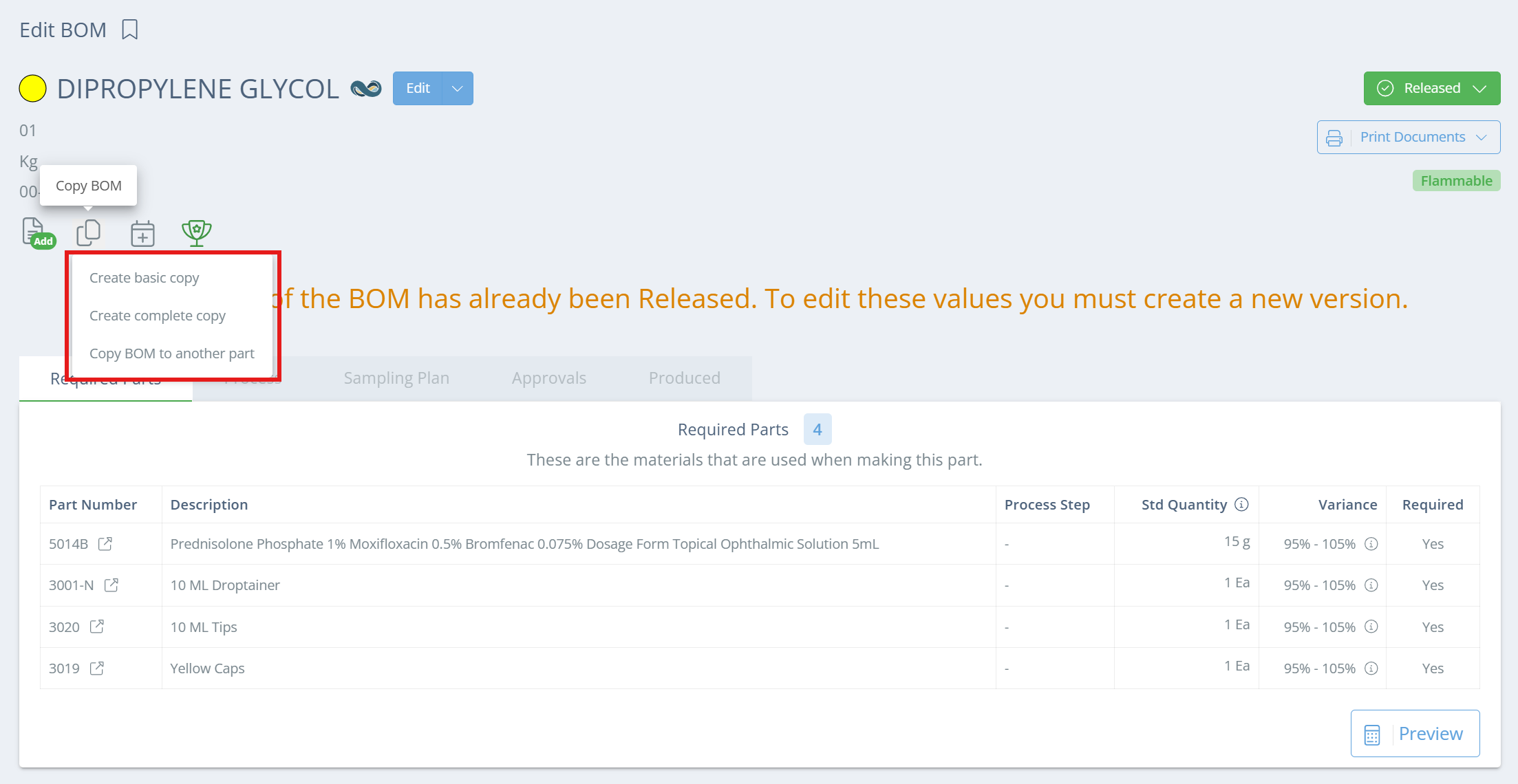
Screencap from v4.21.264.294
| Copy Type | What the Copy Does | Next Required Step |
|---|---|---|
| Create basic copy | Copies only the produced part | Enter new version number |
| Create complete copy | Creates an identical copy of current BOM, under different version | Enter new version number |
| Copy BOM to another part | Creates an identical copy of current BOM, but the produced part is different | Select new produced part, enter new version number |
Make any needed changes to the BOM, then change the Lifecycle (status) to 'Released' so the BOM can be scheduled for production.
Discontinue a BOMIf the BOM you copy from will be obsolete after your updates to the new version, it's a good idea to set the Lifecycle of the old BOM version to Discontinued. That way the production team can't accidentally select the old version when scheduling, but the version will still exist for traceability.
Updated 3 months ago