
Quality Control
Real-Time Inventory Quality Control
Español: Lee esta página en español.
Français : Consultez cette page en français.
We all want quality,. We want quality to keep customers impressed and regulatory organizations satisfied. Unfortunately, most manual quality control efforts slow down operations with heaps of tedious busy work.
Still, the busy work is necessary to prevent costly mistakes, right? Has your business ever mixed-up items in a customer shipment, scrapped an entire batch in manufacturing, or realized after the fact that data is missing or illegible on quality record?
We wont tell anyone. After all, that was before you got DataNinja.
Configure your quality workflow in DataNinja to leverage automated checks and immediate operator feedback.
Error Prevention
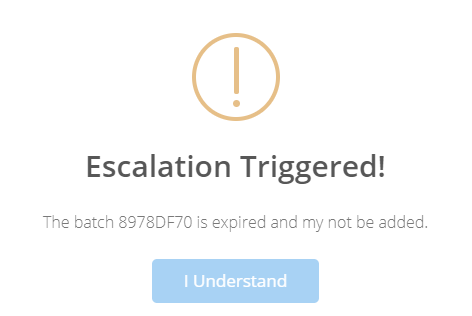
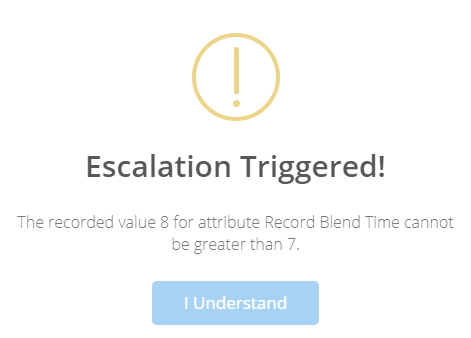
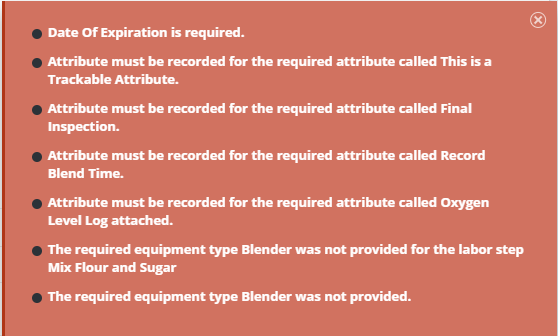
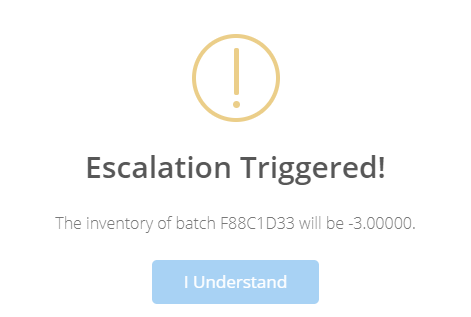
The following are a few examples of immediate error proofing alerts in DataNinja. The severity of alerts is a customization that can be dialed up, or down in Gear >> Company Settings

Enforce Controls on Inventory
Inventory is your most valuable asset. DataNinja lets you place automated controls to enforce proper inventory usage.
Level of Rigor
"Level of Rigor" refers to the configurable escalation settings in DataNinja. You can choose how aggressive you need DataNinja to monitor inventory controls. Is it ok to ship orders for materials that have not received approval via signature? If a user makes a mistake, do you want the system to halt them immediately or require a yellow escalation alert to be created?
Four Tier Alerts
Always allowed, Yellow escalation, Red Escalation, Never Allowed
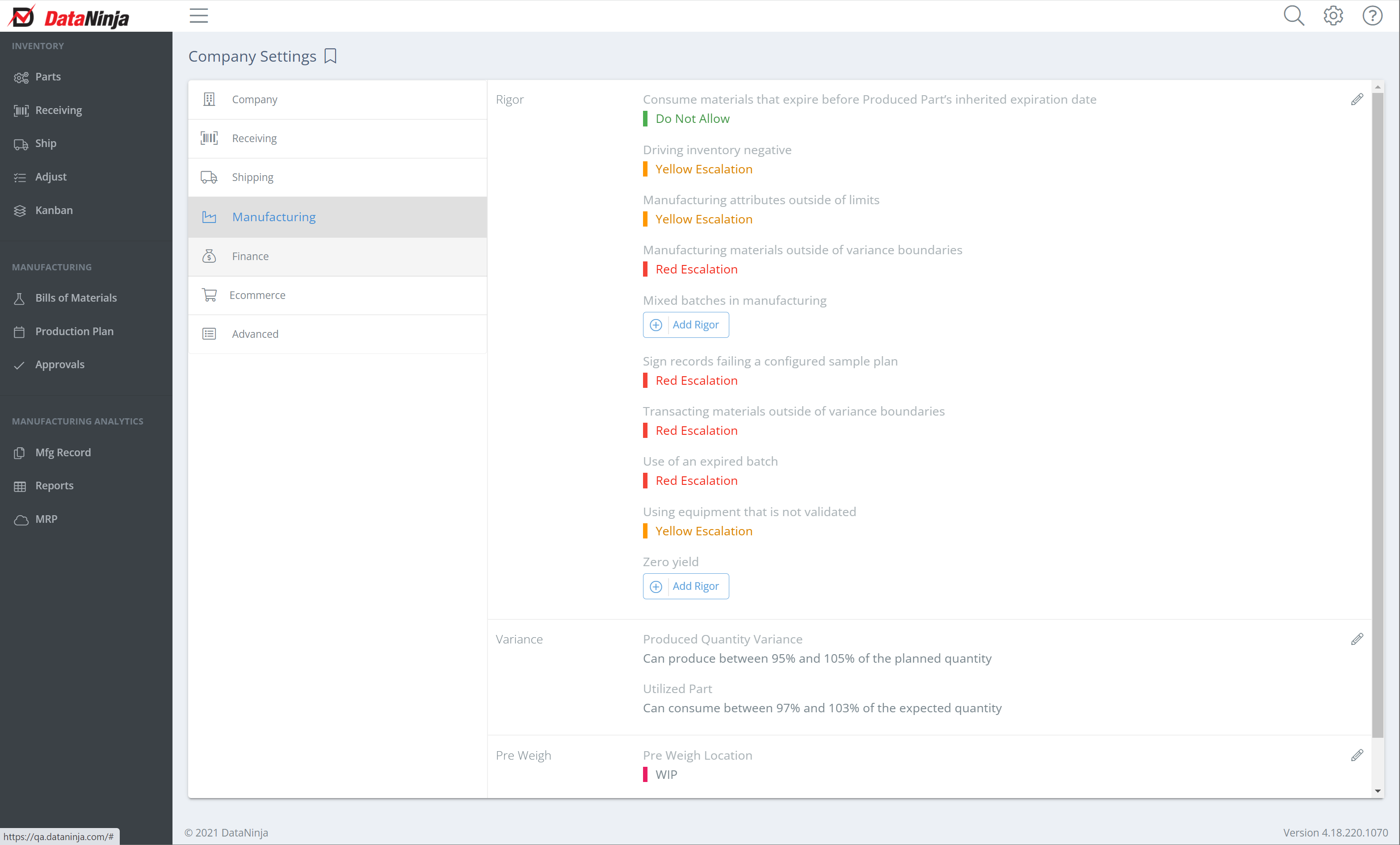
Level of Rigor controls continuously monitor:
- Use of Expired Inventory
- Use of Non Released Inventory (See Quality Control)
- Driving Inventory Negative
- Zero Yield Production Run
- Using Non-Validated Equipment
- Trackable Attributes outside of threshold
- Inspection Attributes outside of threshold limits
- Mixing Part Lot Numbers during a production run
- Inventory variances outside of boundaries.
Inventory Strategies
FIFO - First In First Out
FEFO - First Expiration First Out
Quality Control Status
You can adjust the quality status of inventory batches using an Incoming Inspection workflow
By default, items received into inventory enter as Released. If a specific part requires a quality inspection before approval for usage, you can setup an Incoming Inspection workflow and the part will enter inventory with a status of your choice.
The following inventory statuses can be assigned to any batch or sub-lot tracked barcode id.
- Released
- Pending
- Awaiting Inspection
- Received
- In Process
- Failed
- Scrapped
- Awaiting Approvals
StatusesStatuses (aka Lifecycles) can be created on the Batch Lifecycles page in DataNinja. Click on the gear icon in the top right, then go to "All Lists" and search Batch Lifecycles. From this page, you can specify how you want to handle inventory with each status, and create new statuses that fit your company needs.
Updated about 1 month ago