
Part Lifecycle
Determine how a part can be transacted
What is Part Lifecycle?
Part Lifecycle is an optional setting that controls which types of business transactions are allowed for a part. The Lifecycle setting of a part manages stages from inception, through R&D and manufacturing, to end of distribution, and eventually retirement.
The following lifecycle "stages" are available in the system:
- Initialized
- R & D
- Industrialization
- Distribution
- Replenishment End
- Sales End
- Closed
Go with DISTRIBUTIONNot sure which one fits your needs? Go with "Distribution". This lifecycle setting has no restrictions.
What does the Part Lifecycle setting do?
The current lifecycle of a part controls what can be done with it in the system. These controls act like an extra, automated check against data entry errors.
Initialized - Allows the part to be tracked, but prevents new purchases of the part, and does not allow production or shipping of the part.
R&D/Industrialization - Allows full lab inventory traceability entries, while preventing shipment to customers if the part is mistakenly entered on a customer order.
Distribution - No restrictions are placed on this part. New purchases can be made, production can be scheduled, and the part can be shipped.
Replenishment End - Allows customer order fulfillment, but does not allow additional production to be scheduled (or purchases to be made if the the part is a Raw Material).
Sales End - Does not allow additional production to be scheduled, new purchases of the part, or shipping of the part.
Closed - Part is retired, and cannot be purchased, used in production, or shipped.
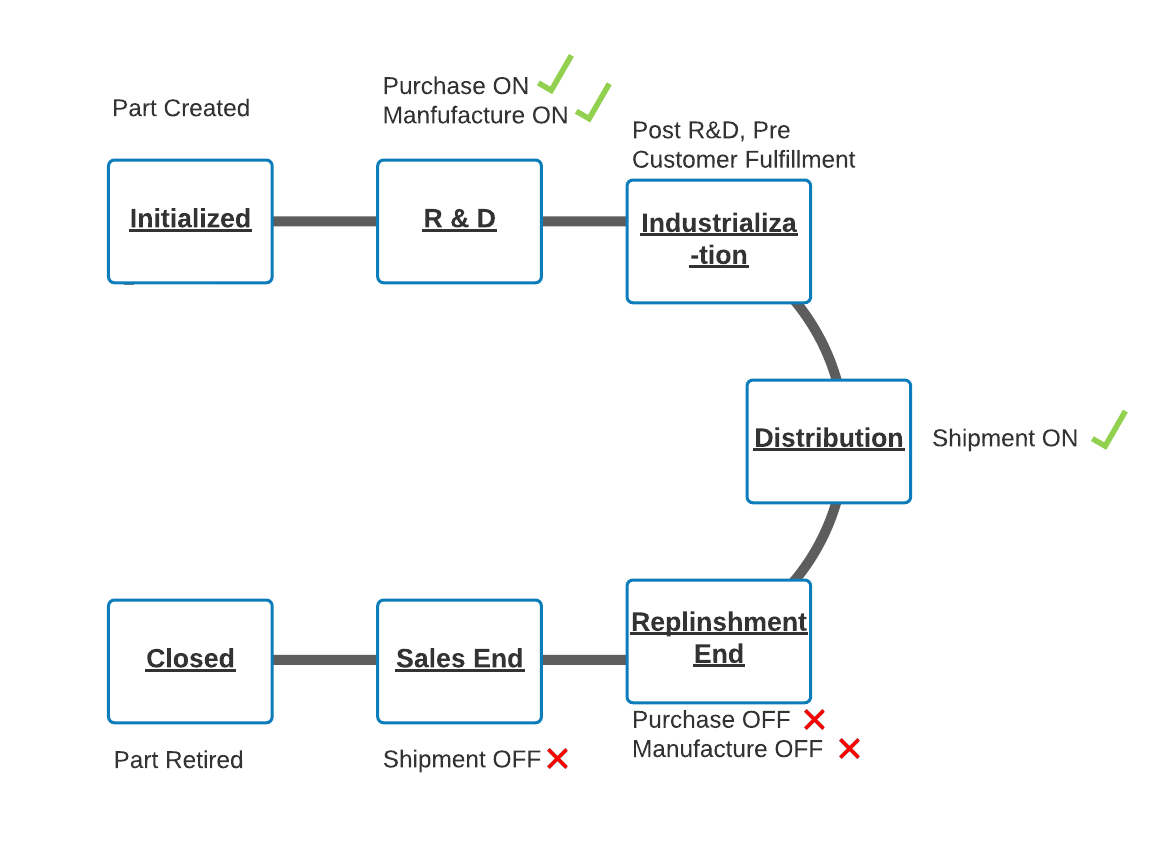
Receiving: R&D, Industrialization, Distribution
Create and Release BOM: R&D, Industrialization, Distribution
Production: R&D, Industrialization, Distribution
Add as Required Part to BOM: R&D, Industrialization, Distribution, Replenishment End, Sales End
Shipping: Distribution, Replenishment End
How to Change a Part's Lifecycle
On the Parts page, find and open the relevant part, either by double clicking on it, or clicking 'View' in the Actions column.
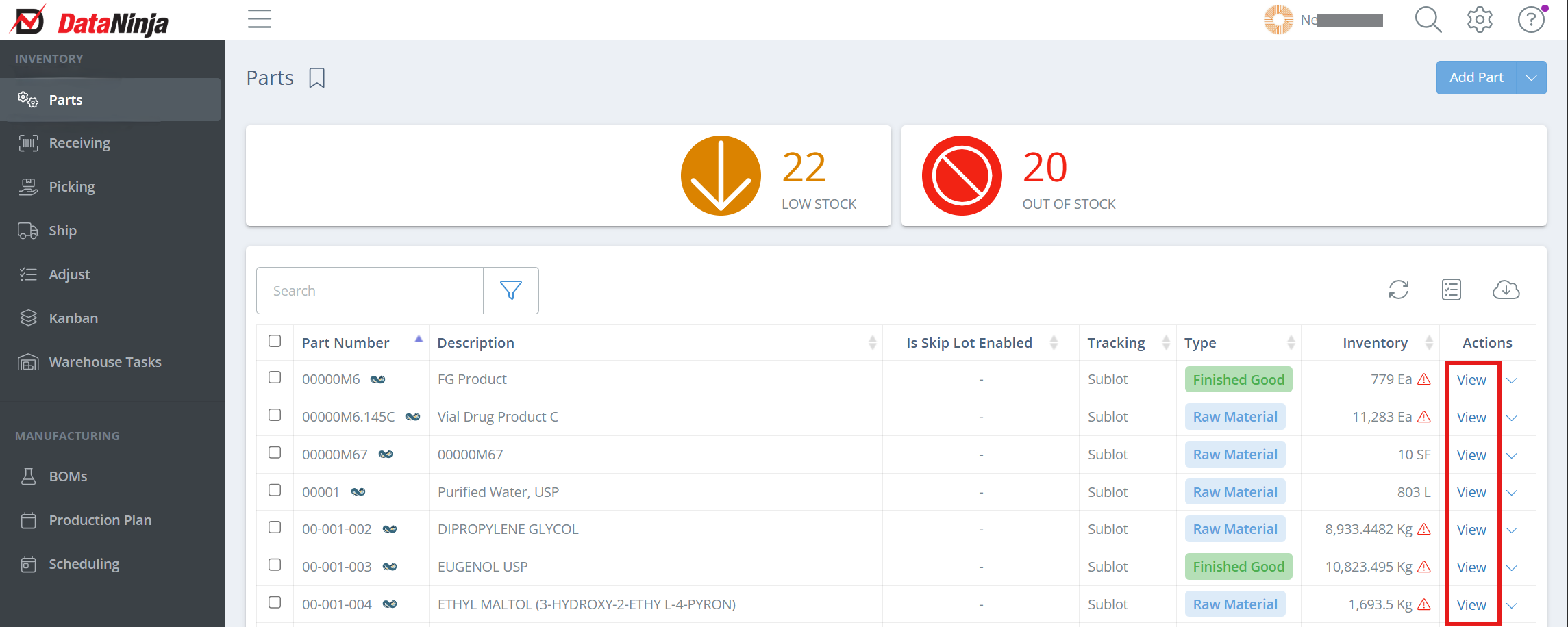
Screencap from v4.21.264.255
On the Maintain Part page, click Edit next to the part name, then scroll to the 'Life Cycle' field and select the appropriate option.
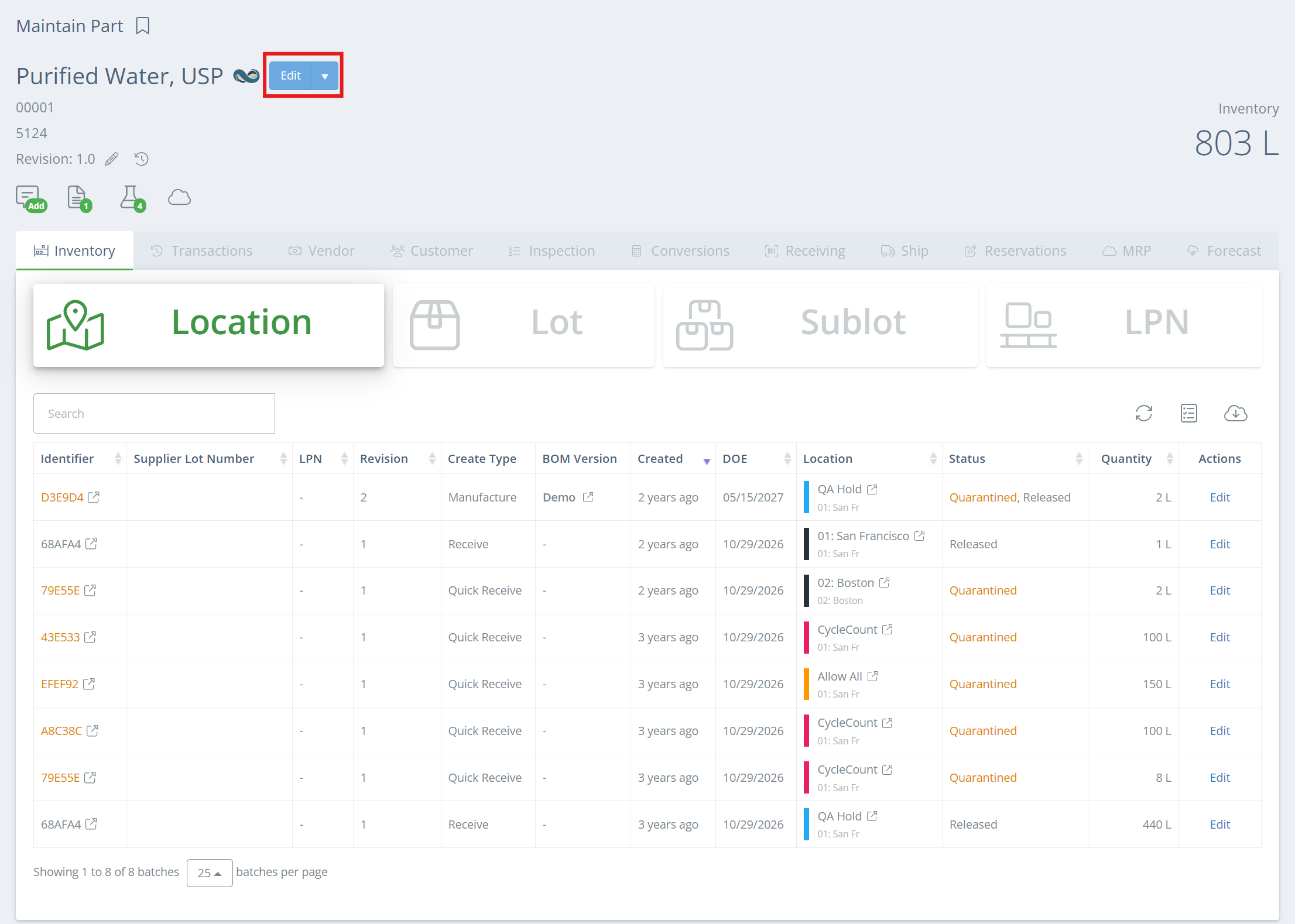
Screencap from v4.21.264.255
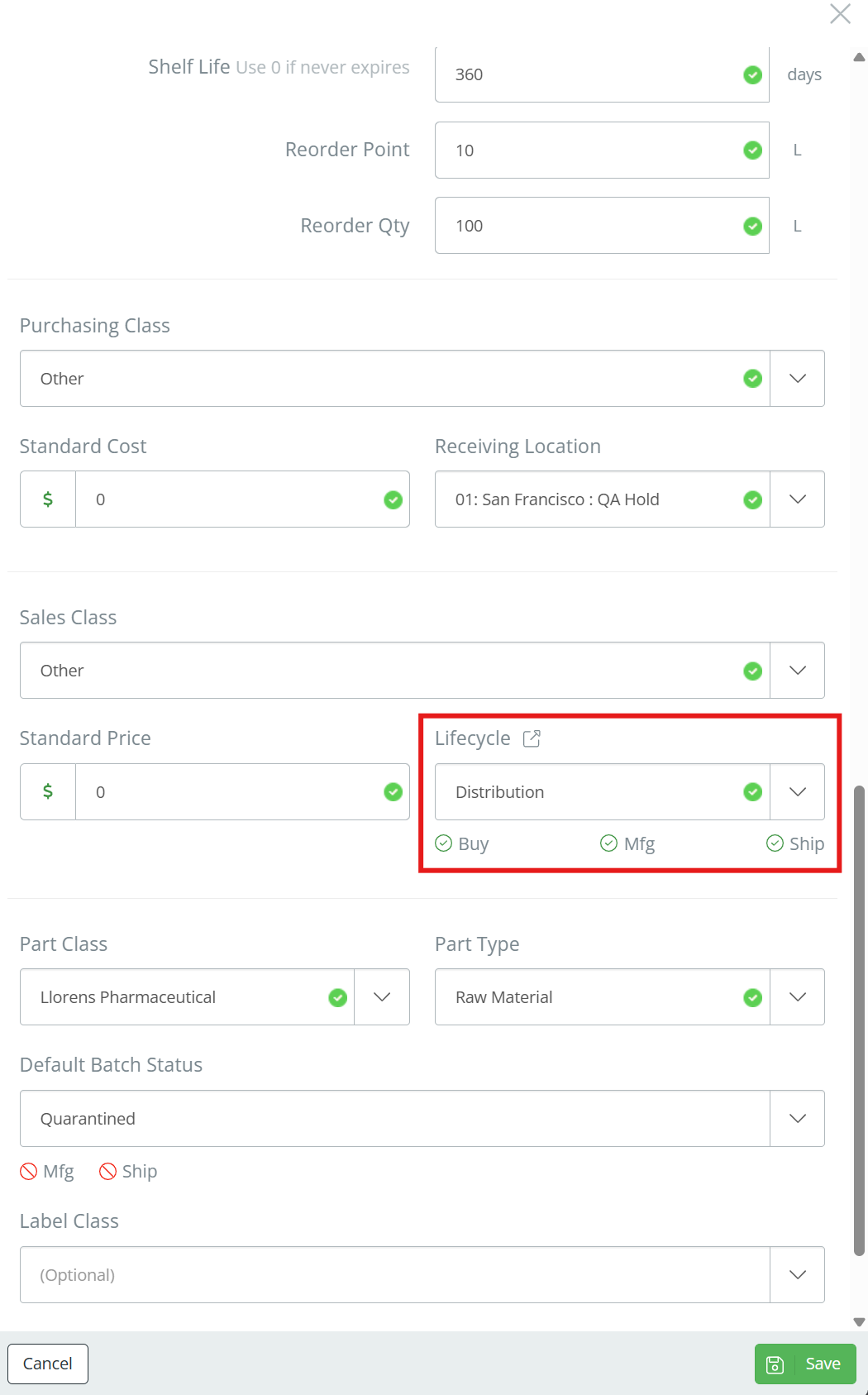
Screencap from v4.21.264.255
If you aren't sure what restrictions each Lifecycle has, watch for a check or an 'X' next to "Buy", "Mfg", and "Ship" underneath the Lifecycle field. Note that "Mfg" refers to new production runs that produce this part, not consuming this part during manufacturing. Click 'Save' when finished.
Updated 4 months ago