
Scale Setup
Español: Lee esta página en español.
Français : Consultez cette page en français.
Using scales in DataNinja enables you to more accurately track inventory used during production. Scales are also important in the Pre-Weigh process, if that feature is setup on your DataNinja instance. Generally, as long as your scale has a USB or serial port, it can connect to DataNinja.
To set up a scale for use in DataNinja, it will need to be added to the equipment page, plugged in, and then connected in the UI.
Important Scale InformationWhile a DataNinja Hub has 4 USB slots that scales can be connected to, we strongly recommend having a Hub for each scale rather than one Hub for multiple scales. This is because if/when the Hub gets rebooted, for any reason, the COM port assignments shuffle unpredictably and you could see weight readings from the physical 'Scale 1' on DataNinja's 'Scale 3'. The best way to avoid crossed readings like this is for each scale to be connected to its own Hub.
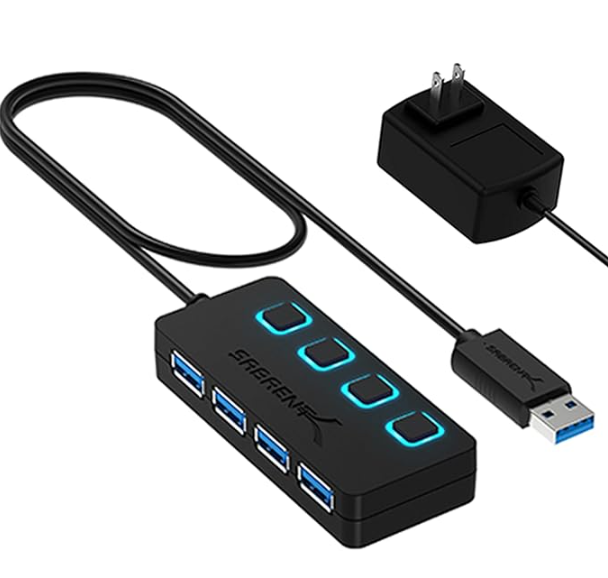
If multiple scales must be connected to the same Hub, a powered USB hub (example below) should be used to connect the scales to the DataNinja Hub so only one USB slot on the DataNinja Hub is used.
Add a Scale to Equipment
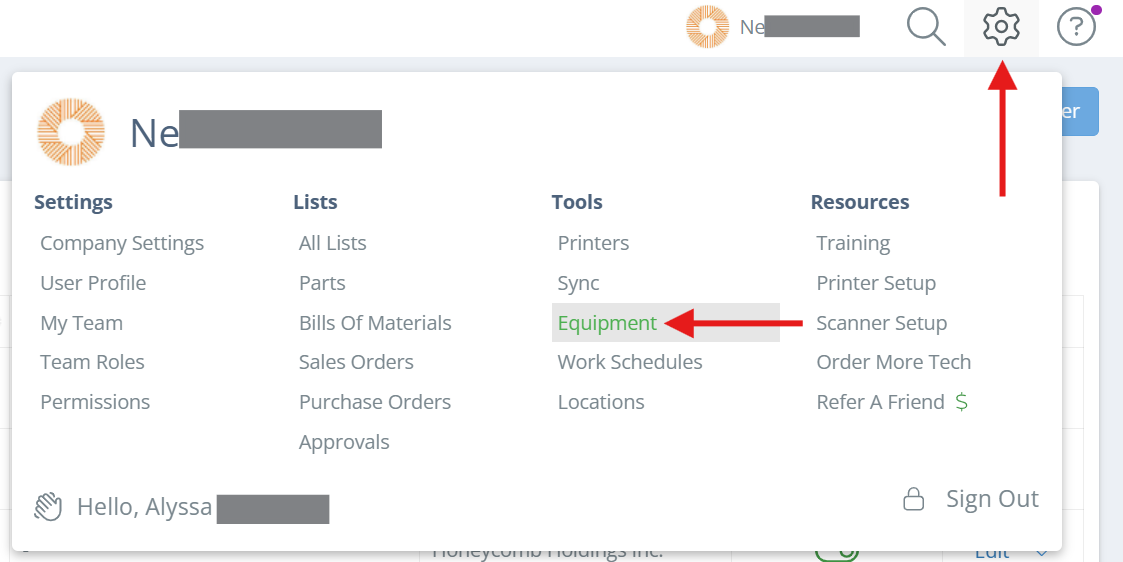
Click on the settings icon in the upper right corner and click on "Equipment".
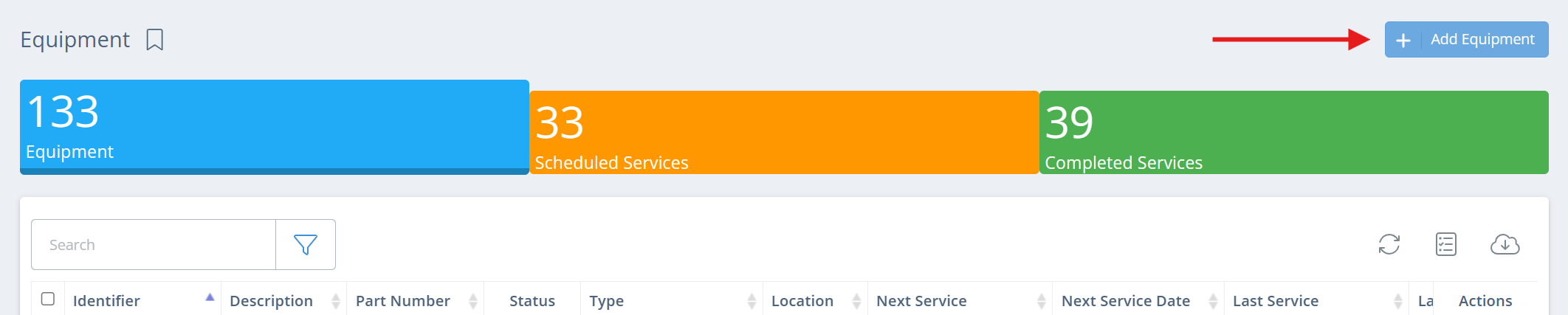
Click on "Add Equipment" in the upper right corner.
Fill out the fields as prompted, and make sure that the Type is set to 'Scale'. Note that the Company field will only show if you have more than one company listed on your DataNinja site. See our Work Centers page for information on what they are and how to se them up.
The optional fields are helpful for better tracking, and you can set up email reminders to be sent to a role when a scale (or other equipment) is due for service. Click 'Save and Close' when finished.
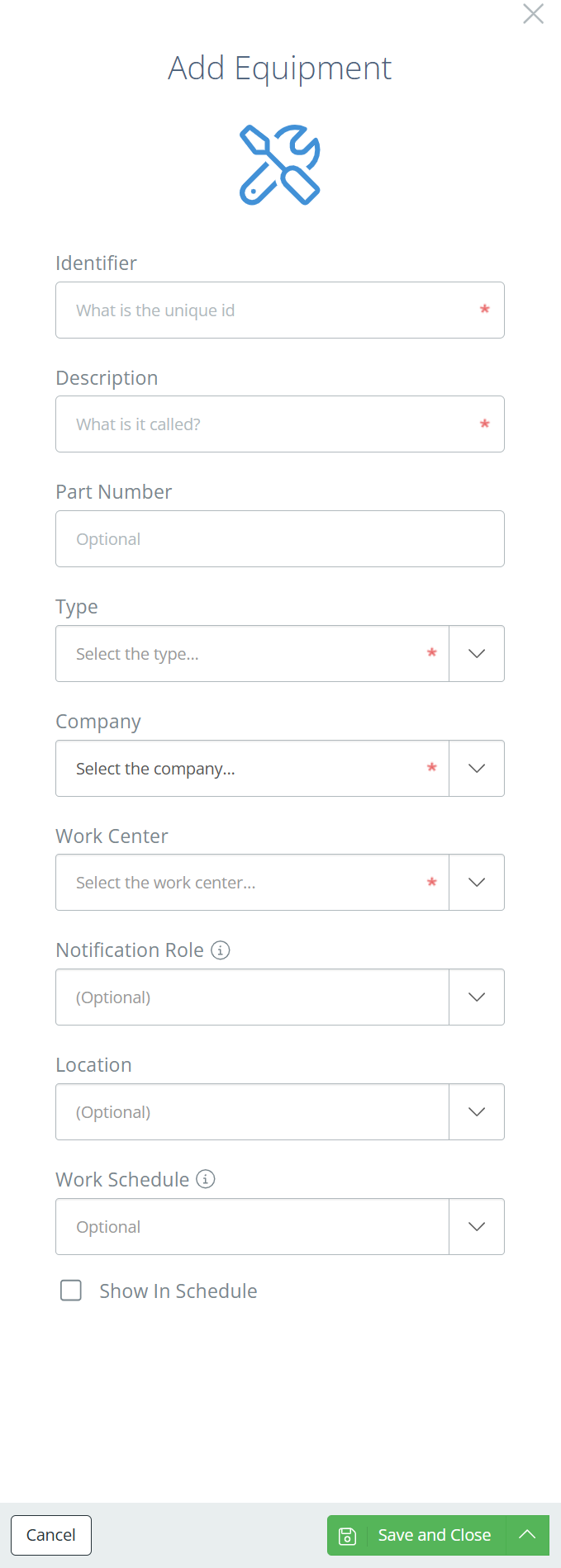
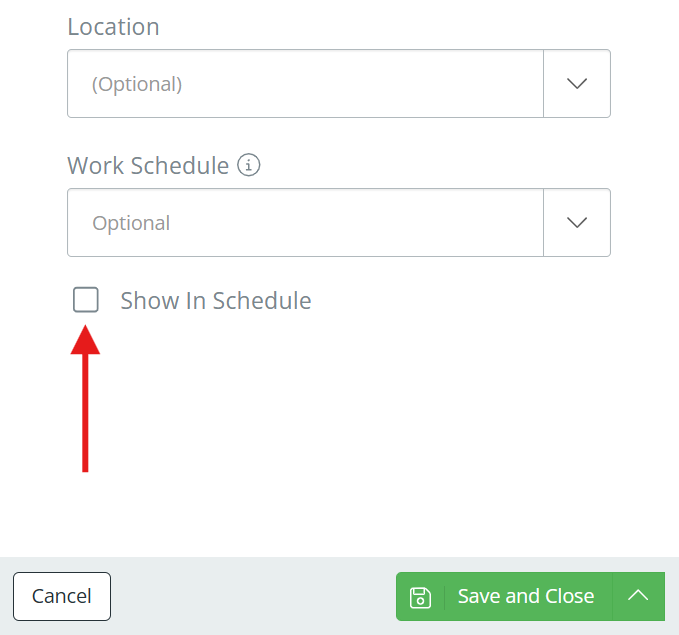
Show in Advanced SchedulingIf your DataNinja site has advanced scheduling enabled, the equipment will only show in the Schedule tab if the 'Show In Schedule' checkbox is marked.
Plug in the Scale
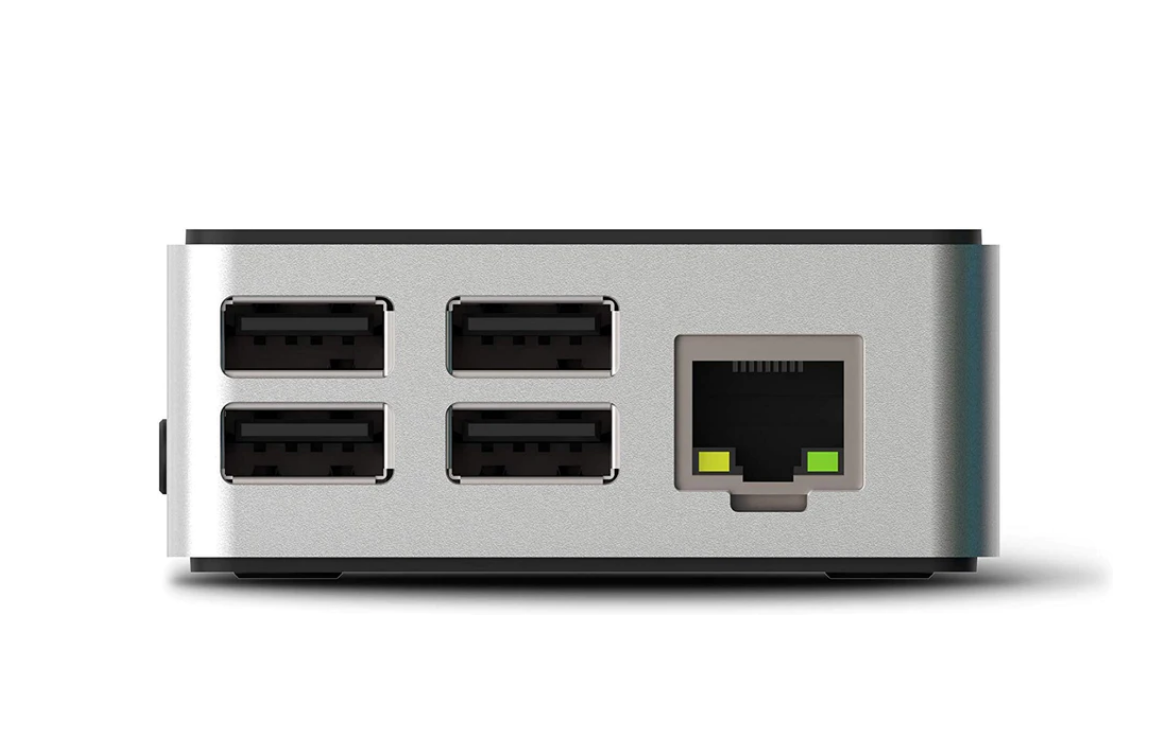
Plug the scale into one of the USB ports on the hub.
Connect the Scale in DataNinja
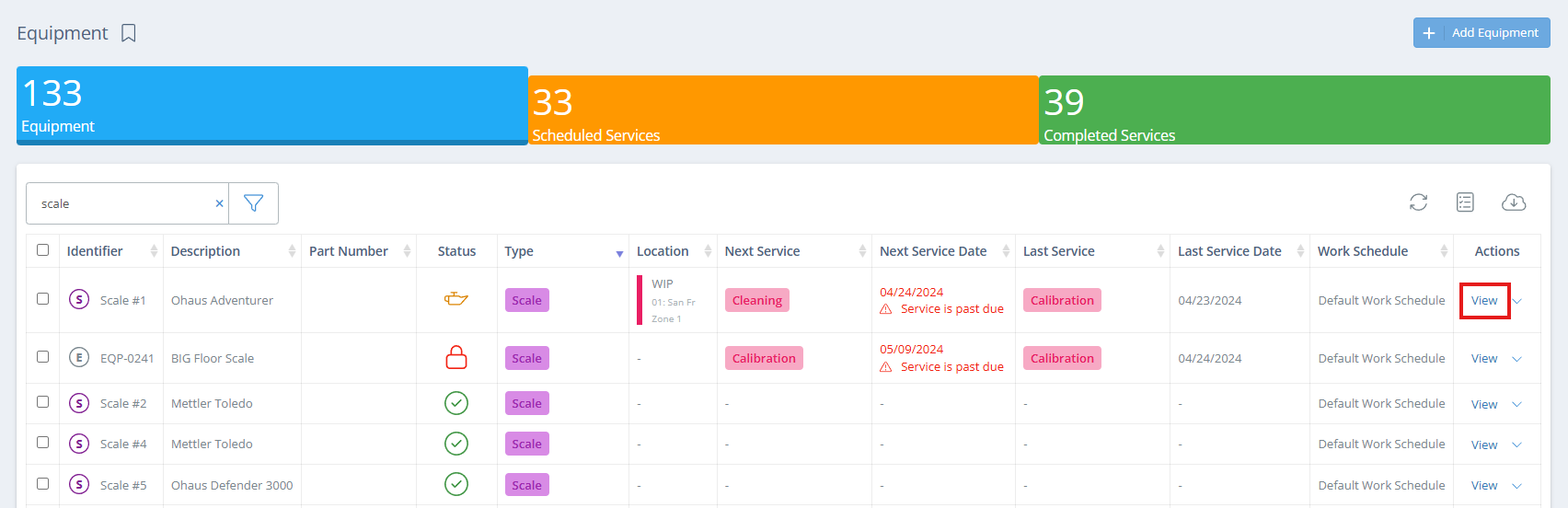
On the Equipment page, find the scale and click 'View' in the Actions column, or double click on the relevant row.
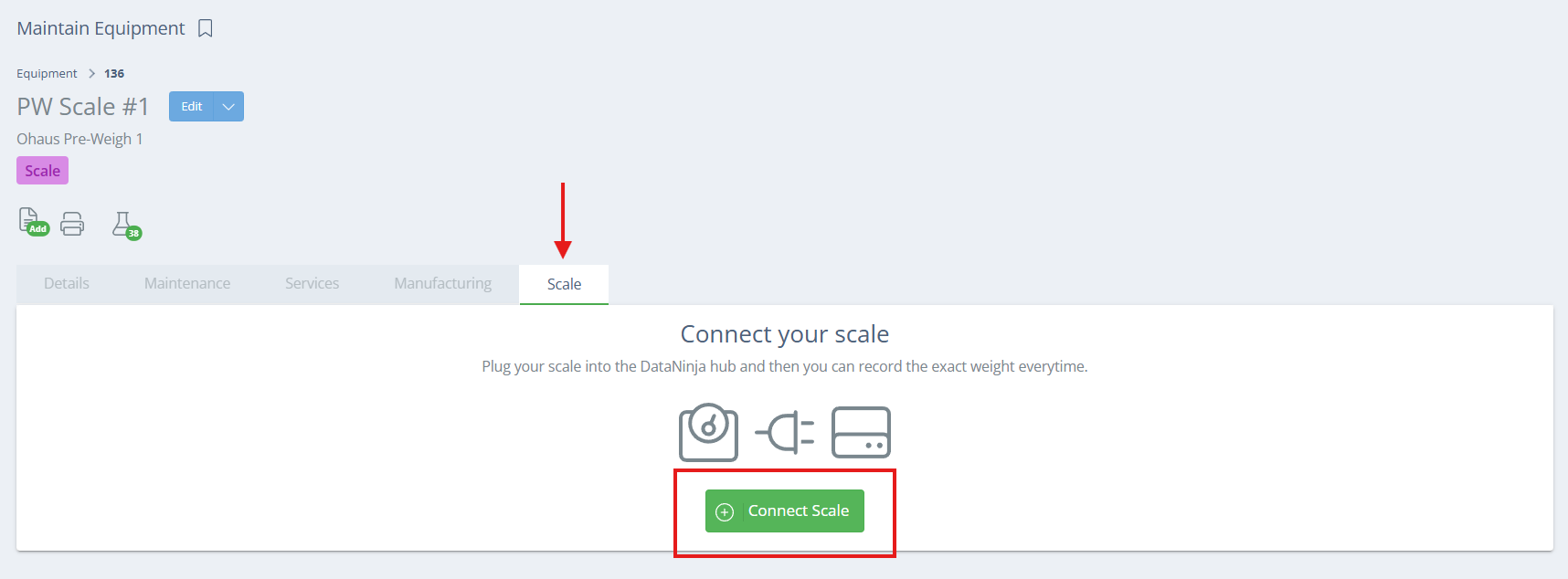
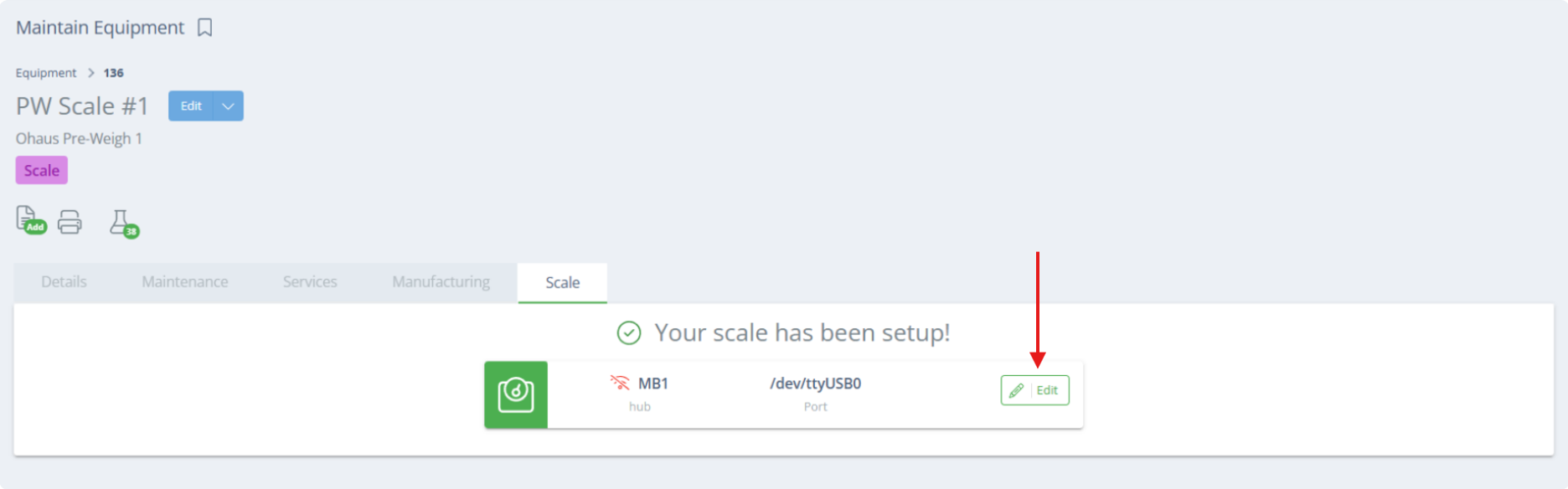
On the Maintain Equipment page for the scale, go to the scale tab, and click "Connect Scale".
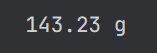
The scale should now be connected to DataNinja. To confirm it is working, add weight to the scale and click on 'Edit', and the scale should report the current weight to DataNinja.
Verify Scale Settings
In the scale settings, make sure the settings match the following:
- Baud rate: 9600
- Data Bits: 8
- Parity: none
- Stop bits: 1
- Stable: None/Off
- Handshake (aka flow control): none
- Auto printing or streaming menu area
- continuous or interval of 1 second
If the scale allows for control of how the data is sent, the typical format is: [net weight] [uom]
Updated 5 days ago