
Utilizing DQL and the DataNinja API
How to use powerful DQL and API to pull large amounts of data
Español: Lee esta página en español.
Français : Consultez cette page en français.
This page applies to DataNinja tenants integrated with NetSuite or QuickBooks Online, and to tenants with no finance system integration. The workflow in DataNinja is the same across integrations; where a financial system changes behavior, the integration-specific note calls it out.
Items that are synced with an integration will show the relevant integration's logo. Screenshots on this page may show the NetSuite logo, but tenants integrated with QuickBooks Online will see that logo instead. Tenants with no financial integration won't see any logo.
Use DataNinja Query Language (DQL), the API Explorer, and the DataNinja API to query records, confirm available fields, build Grid Configuration filters, and support integrations.
DQL allows you to query information stored in DataNinja. The API allows technical users and integration developers to interact with DataNinja data through API endpoints.
Recommended UsesThese tools are useful when you need to:
- Pull large amounts of data from DataNinja
- Support custom reporting
- Review available fields for an object
- Test filters before using them in reports or Grid Configurations
- Support integrations with external systems
- Better understand how DataNinja objects and fields are structured
DQL and API Overview
DQL and the API explorer are found within your DataNinja site. The API Explorer provides a visual breakdown of tables and objects in the DataNinja database, and DQL queries are structured based on those tables to provide read-only data. The DataNinja API and Postman are outside of your DataNinja site, but work together to allow you to make changes to live data, or pull read-only.
| Tool | Purpose | Common Use |
|---|---|---|
| DataNinja Query Language (DQL) | Allows users to query DataNinja data using a SQL-like syntax | Reviewing records, testing filters, building reports, confirming field values |
| API Explorer | Allows users to review available DataNinja objects, fields, and relationships | Identifying field names for DQL, Grid Configurations, reports, or integrations |
| DataNinja API | Allows technical users to interact with DataNinja data through API endpoints | Creating, updating, retrieving, or integrating records with external systems |
| Postman API Documentation | Provides API endpoint documentation and examples | Reviewing API calls, generating tokens, finding parts, reviewing inventory levels, and supporting integrations |
DataNinja Query Language (DQL)
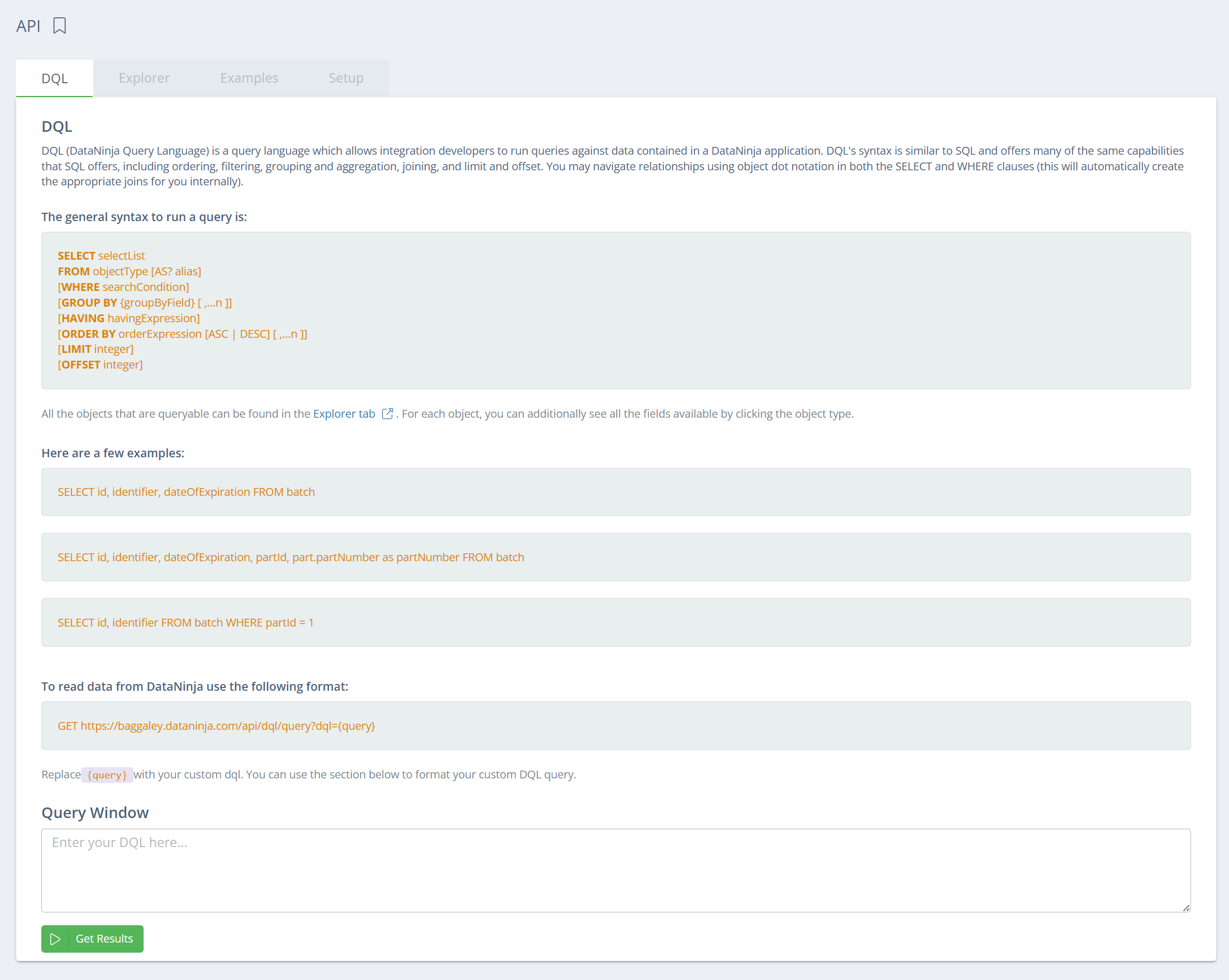
DataNinja Query Language (DQL) is a SQL-like query language for data contained in a DataNinja application. Use DQL to review records, test filters, build reports, and confirm field values. Use object dot notation in both the SELECT and WHERE clauses to navigate relationships. DataNinja automatically creates the appropriate joins internally.
DQL supports:
- Where
- Group by
- Having
- Order by
- Limit
- Offset
DQL is commonly used by implementation teams, administrators, support teams, and technical users who need to query DataNinja data or confirm how information is structured in the system.
Accessing the API Page
You can run DQL from the API page in DataNinja; click on the gear icon in the top right, then go to 'All Lists' and click on the API page.
Using the API Explorer
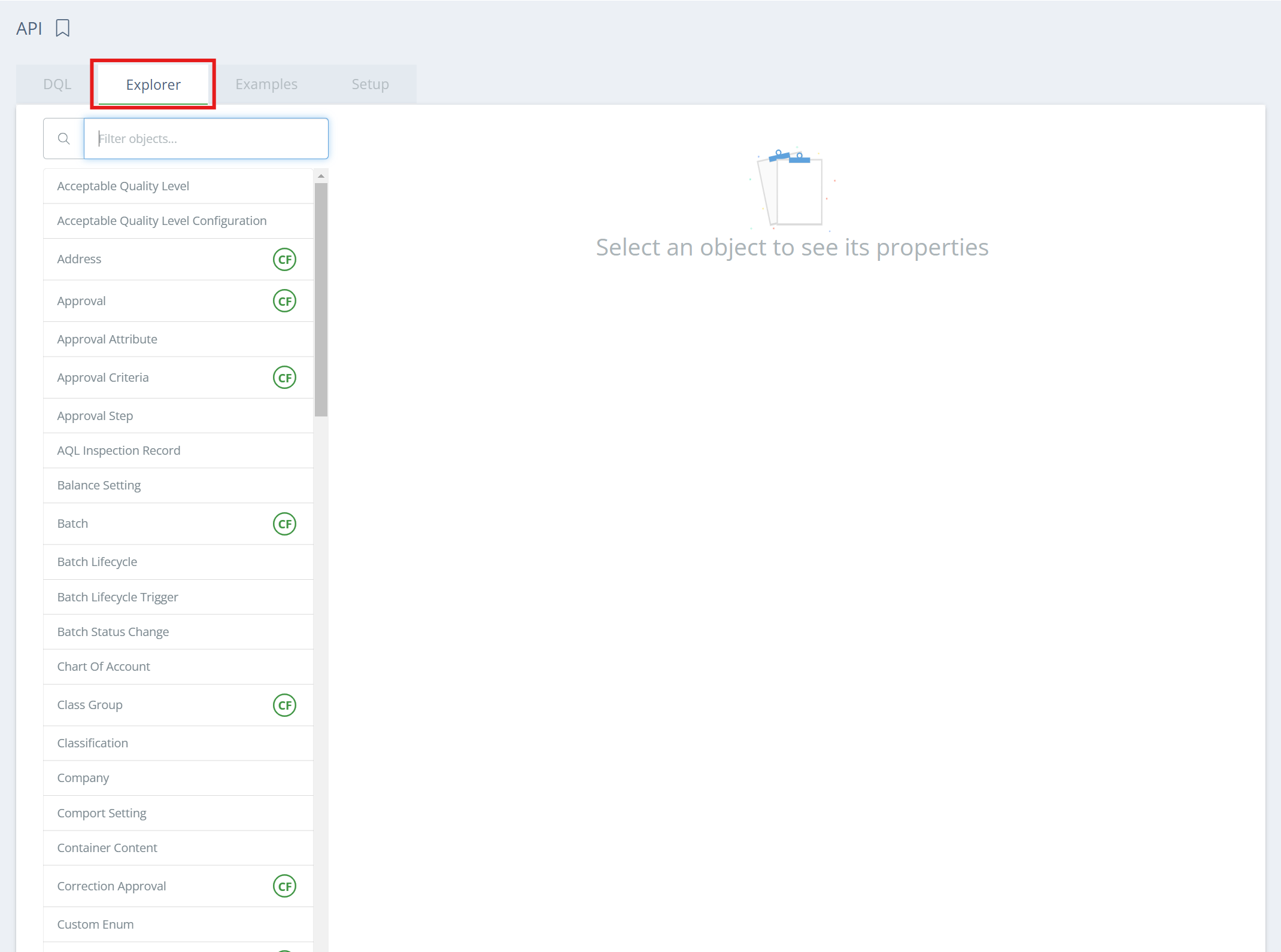
To explore the objects you can query with DQL, open the Explorer tab at the top of the API page.
The API Explorer allows you to review available DataNinja objects and fields. Use it to confirm the correct field name, or copy directly into a query.
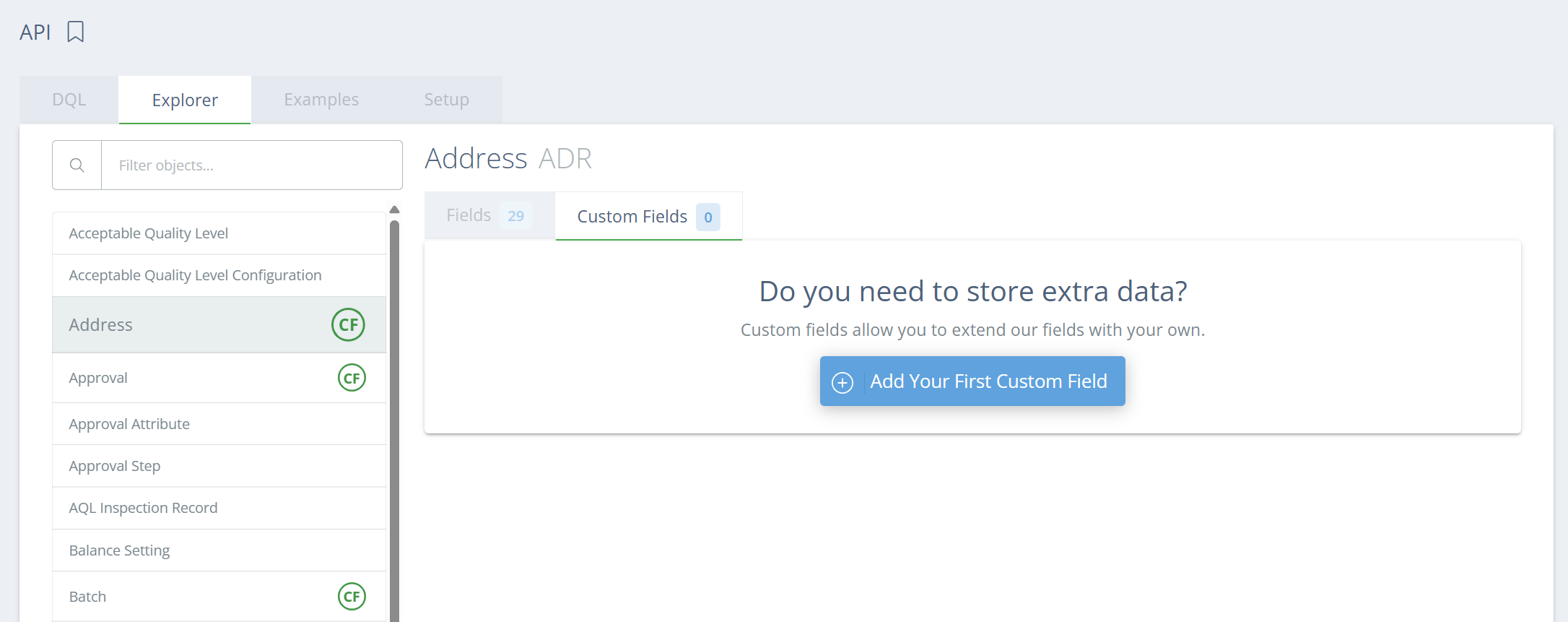
If a table shows a green 'CF' circle, that means that the table can have custom fields created on it.
Queries can be auto-generated by selecting the checkbox next to necessary fields on a table, then clicking 'Copy'. Note that only 1 table can copy at a time, and if a new table is copied from, the previous query will be over-written.
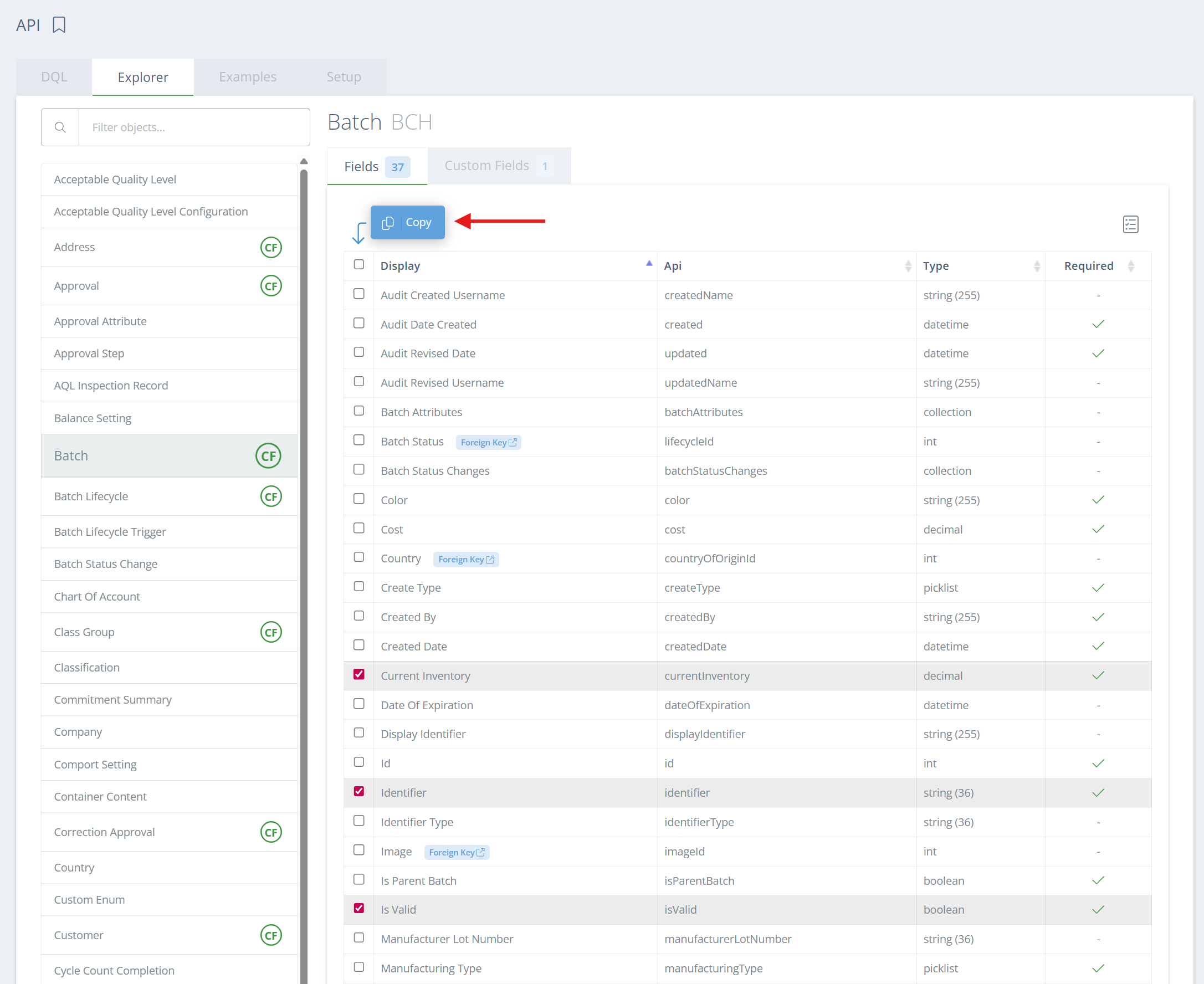
If a field on a table has 'Foreign Key' next to it, then that field can connect to a different table. Click on 'Foreign Key' to navigate to the connected table.
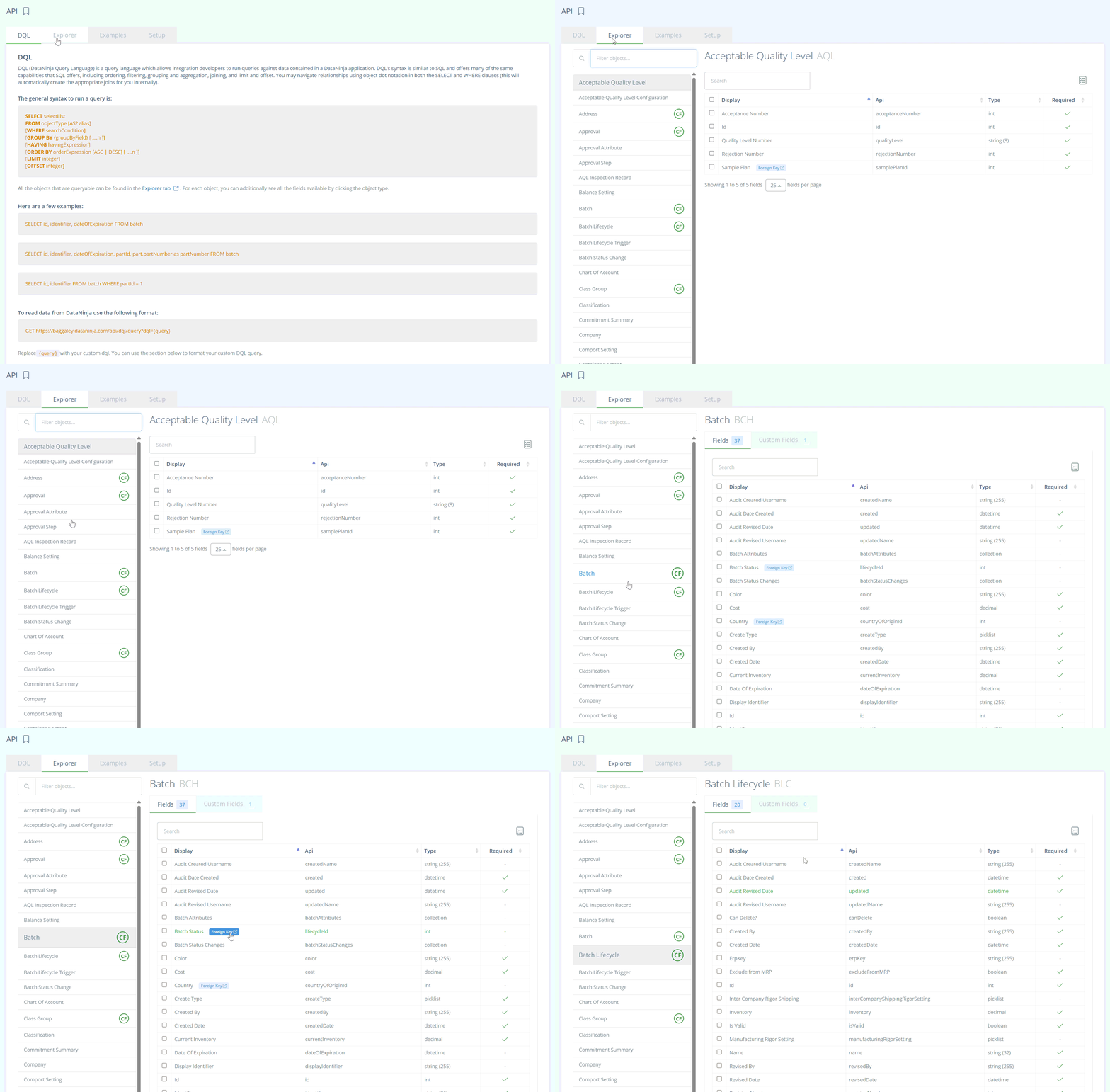
The API Explorer can help you understand:
| What to Review | Why It Matters |
|---|---|
| Objects | Helps identify the DataNinja record type being queried |
| Fields | Confirms the exact field names available for filtering or reporting |
| Related objects | Helps identify fields that may be available through dot notation |
| Data structure | Helps users understand how records are connected |
| Field values | Helps users confirm values that may be used in filters, such as status, type, or category |
Basic DQL Examples
These examples are for reference only- confirm the correct object names, field names, and values in your own DataNinja site using the API Explorer. In the table below replace [fields] with the the relevant fields (columns) that you want to see in the results.
| Goal | Example DQL |
|---|---|
| Return valid records | SELECT [fields] FROM part WHERE isvalid=true |
| Return records with a specific status | SELECT [fields] FROM manufacturedbatch WHERE lifecycleid=2 |
| Return a limited number of records | SELECT [fields] FROM part LIMIT 100 |
| Sort records by name | SELECT [fields] FROM part WHERE isvalid=true ORDER BY name |
Result VolumeIf your DQL query generates a high volume of results, your DataNinja site performance may degrade; pages may load slower or you may see 'Internal Server Error' messages show up. To avoid this, filter your search as much as possible, or use LIMIT to control the number of results that show on the page.
Using Dot Notation for Related Objects
DQL supports dot notation to reference fields on related objects. This allows you to filter or select information from related records without manually creating joins.
SELECT id, identifier, lifecycleId, partId, partNumber, part.defaultLocationId
FROM batch
LIMIT 100
In this example, part.defaultLocationId refers to the defaultLocationId field on the related part object.
Available related objects and fields depend on the object being queried. Use the API Explorer to confirm what relationships are available.
Using the DataNinja API
DataNinja uses Postman to document and interact with the API. The DataNinja API documentation includes examples and instructions for API-related activities, such as:
- Generating a token
- Reviewing available endpoints
- Posting data to DataNinja
- Retrieving data from DataNinja
- Supporting integrations with external systems
The DataNinja API documentation, can be found here.
Best Practices
- Use the API Explorer to confirm object names and field names before writing queries
- Start with a simple query and add filters gradually
- Use filters and limits when querying large datasets
- Confirm exact field values before filtering by status, type, category, or location
- Use selected fields instead of
SELECT *when only specific information is needed - Test query results before using the same logic in a report, integration, or Grid Configuration
- Avoid overly broad queries, especially when working with large datasets
DQL vs API
| Need | Recommended Tool |
|---|---|
| Review or query DataNinja records | DQL |
| Test filter logic | DQL |
| Identify available objects and fields | API Explorer |
| Build or support Grid Configurations | API Explorer and DQL |
| Create, update, or retrieve records through an integration | API |
| Review API endpoint documentation | Postman API Documentation |
Troubleshooting
| Issue | Possible Cause | Suggested Action |
|---|---|---|
| Query does not return expected results | Field/table name may be incorrect | Confirm the field/table name in the API Explorer |
| Query returns too many records | Filter may be too broad | Add additional conditions or use LIMIT |
| Query returns no records | Filter may be too restrictive or value may not match exactly | Remove one condition at a time and retest |
| Related field does not work | Dot notation may not match an available relationship | Review related objects in the API Explorer |
| User cannot access expected data | Role or permission access may be limited | Review the user’s permissions in DataNinja |
Updated 4 days ago