
Label Classes
Part-level labels for manufacturing
Español: Lee esta página en español.
Français : Consultez cette page en français.
A Label Class is a part-level label template that can either replace the manufacturing label or be printed in addition to it. After you create a Label Class and assign it to a part, that label becomes available when manufacturing that part. This allows you to support part-level label printing without switching the label template configured on the printer between batches.
Create a Label Class
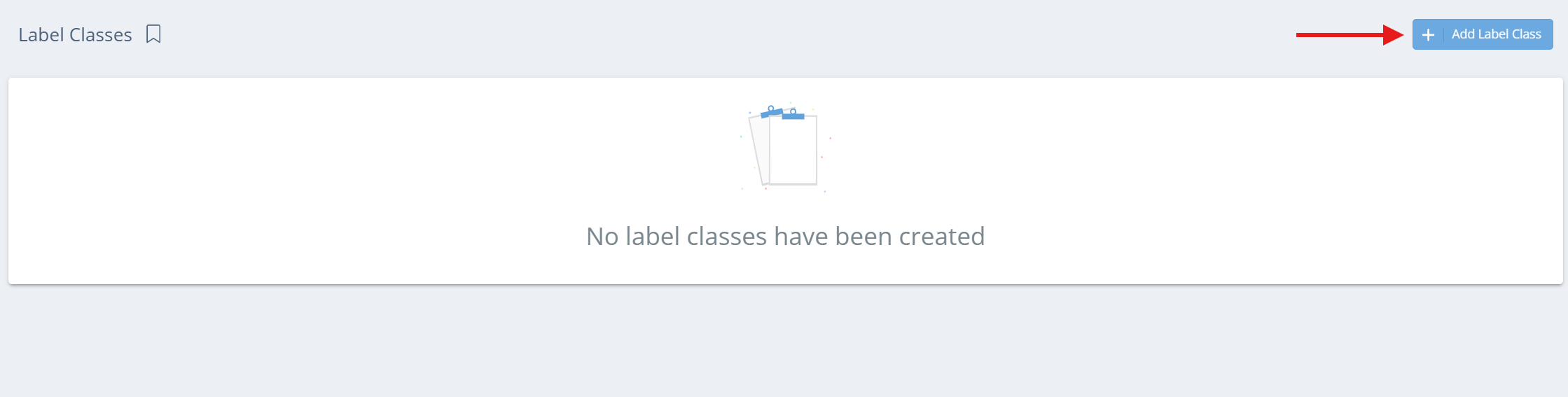
To create a Label Class, click the gear icon in the top-right corner, then select All Lists, and scroll to Label Classes. On the Label Classes page, click Add Label Class to open the editor.
In the label editor, enter a name and description for the label, then select the appropriate DPI, label size, and report query (uncommon). In the ZPL Template field, enter the ZPL that should be used for the label. See the Edit Existing Labels and Design New Labels pages for details on copying, editing, and/or generating ZPL for a label template.
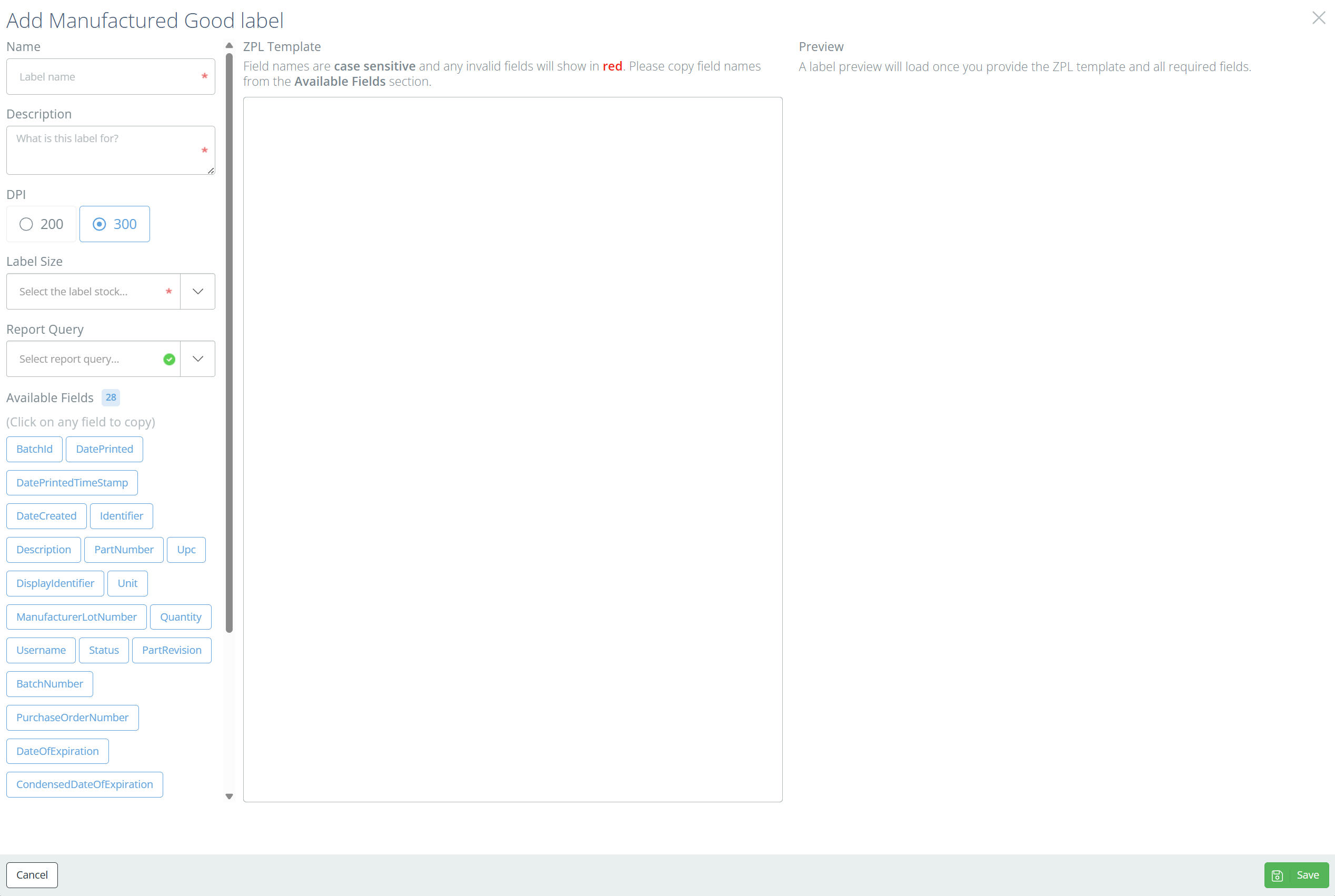
Click Save when done; the Label Class will then be available to assign on Parts.
Select a Label Class on a Part
Go to the Parts page and open the part that needs the Label Class. Click Edit and scroll to the bottom of the Edit Part aside until you reach the Label Class field. Select the new Label Class from the dropdown, then click Save.
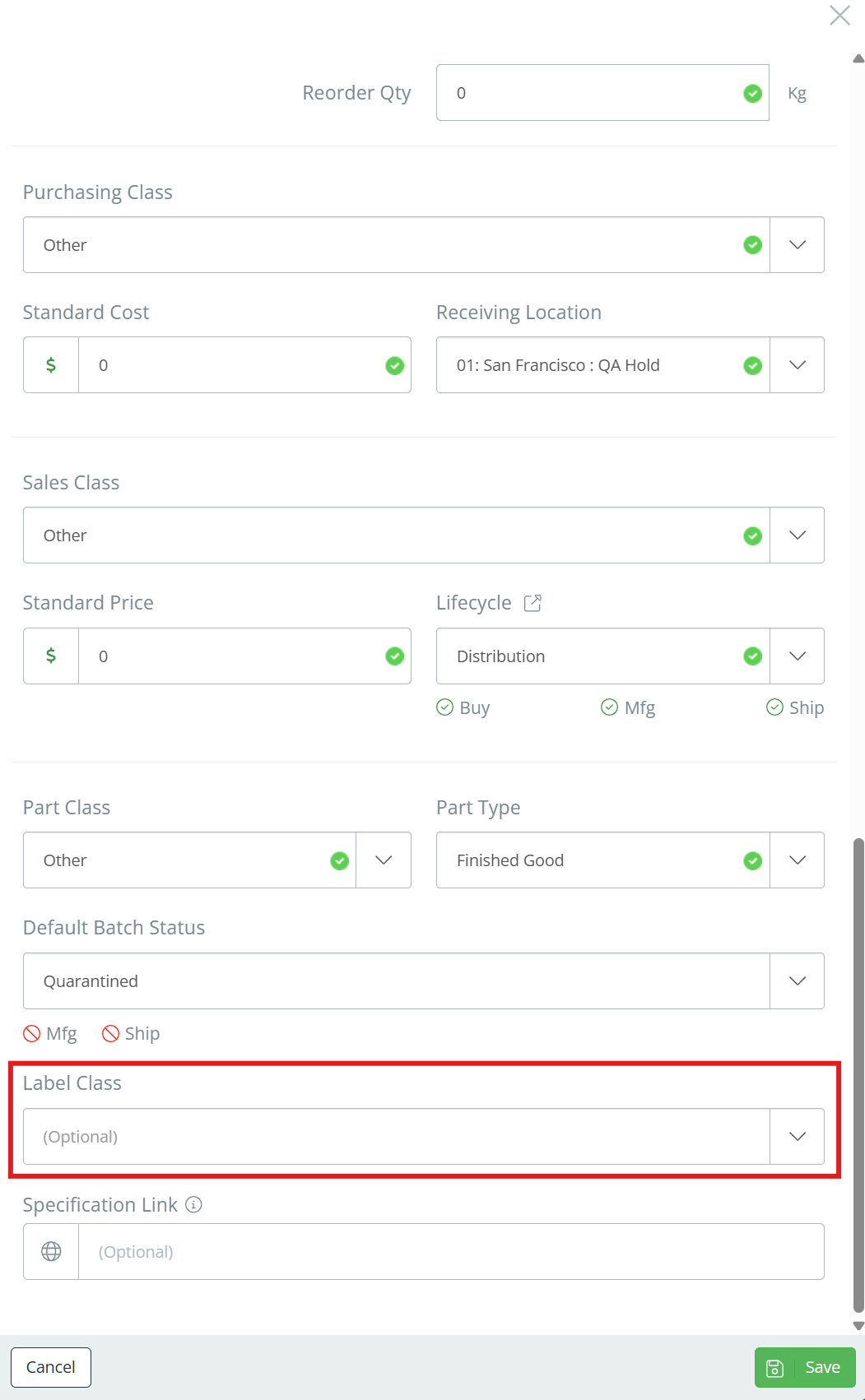
Once the part is saved, the selected Label Class is associated with that part and can be printed during manufacturing.
Printing Label Classes During Manufacturing
When manufacturing a part that has a Label Class assigned, the Label Class will be available to print in the Produced Quantity section.
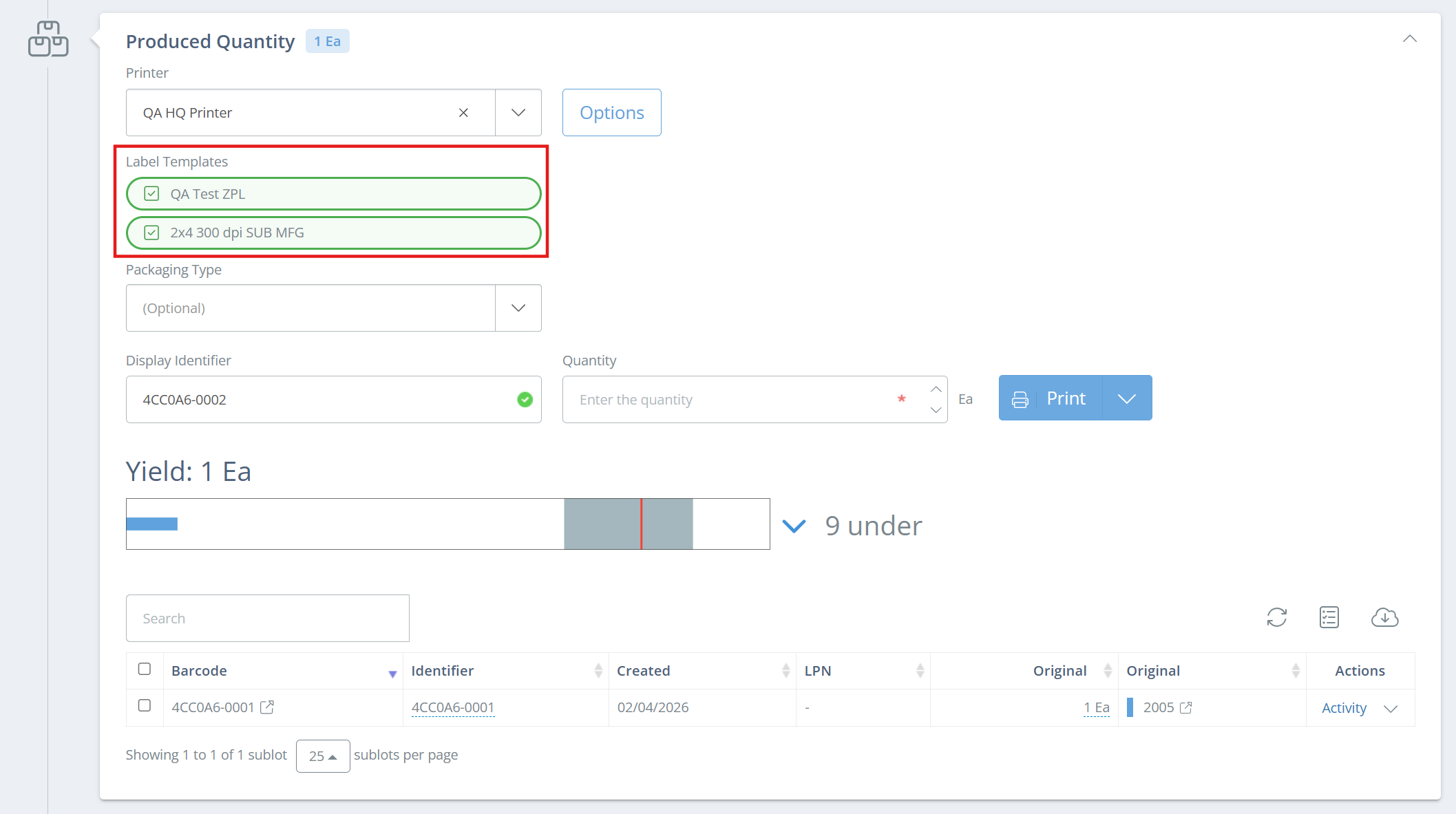
The label template that is selected on the chosen printer will also show and you can opt to print either template, or both. By default, both templates will print, but you can deselect a template by clicking on the green checkmark next to the template name.
The multi-select is also be available when using Print Multiple (in the dropdown next to Print) and when re-printing labels.
Multiple TemplatesThe multi-select templates on a manufacturing record will only show if: 1) There are multiple templates selected on the chosen printer (see Selecting Multiple Templates) or 2) The part being manufactured has a Label Class.
Updated 9 days ago