
QuickBooks Sync Troubleshooting
Español: Lee esta página en español.
Français : Consultez cette page en français.
On occasion, you may notice that a Sales Order/Estimate/Invoice or Purchase Order has not synced to DataNinja within the expected 5-10 minute sync period. If you notice this happen, you can run a manual sync to pull the missing item(s). To do so, go to the page in DataNinja where you would usually find the item (Receiving for PO's, Shipping for SO's), and click on the "Sync Now" button in the top right. Depending on your company settings, it may not be immediately visible, but will be under the dropdown arrow instead.
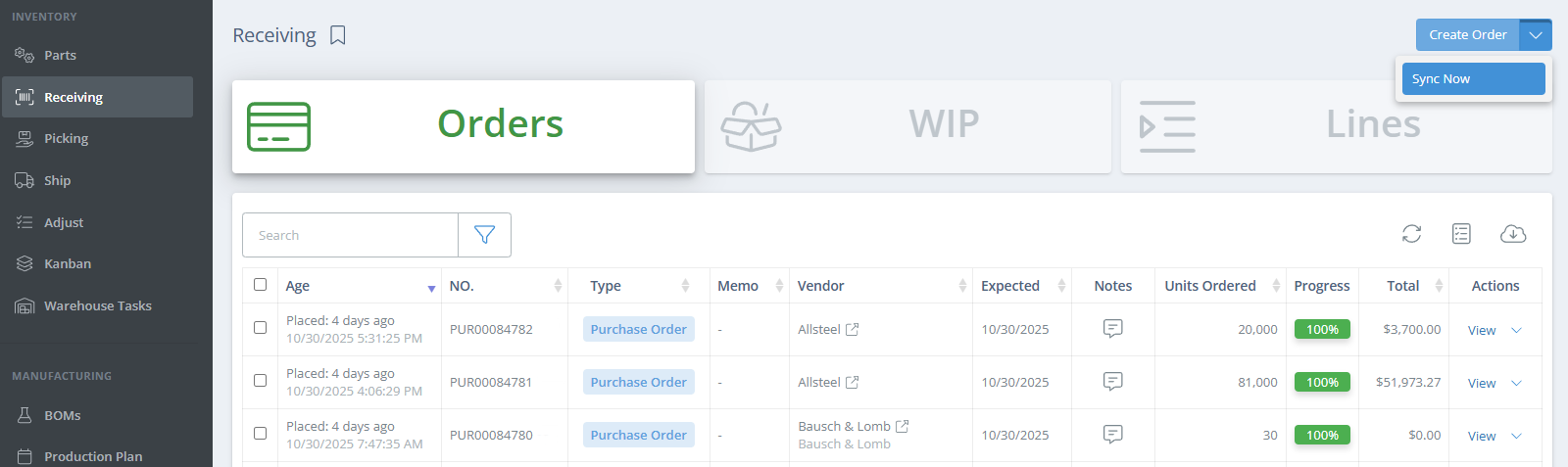
After clicking "Sync Now", an aside will open where you will be able to enter either the specific item(s), or select a time range (up to 1 day ago). If entering an order number, make sure to hit Enter to add the value to the sync list. Once all necessary selections have been made, click "Get Data".
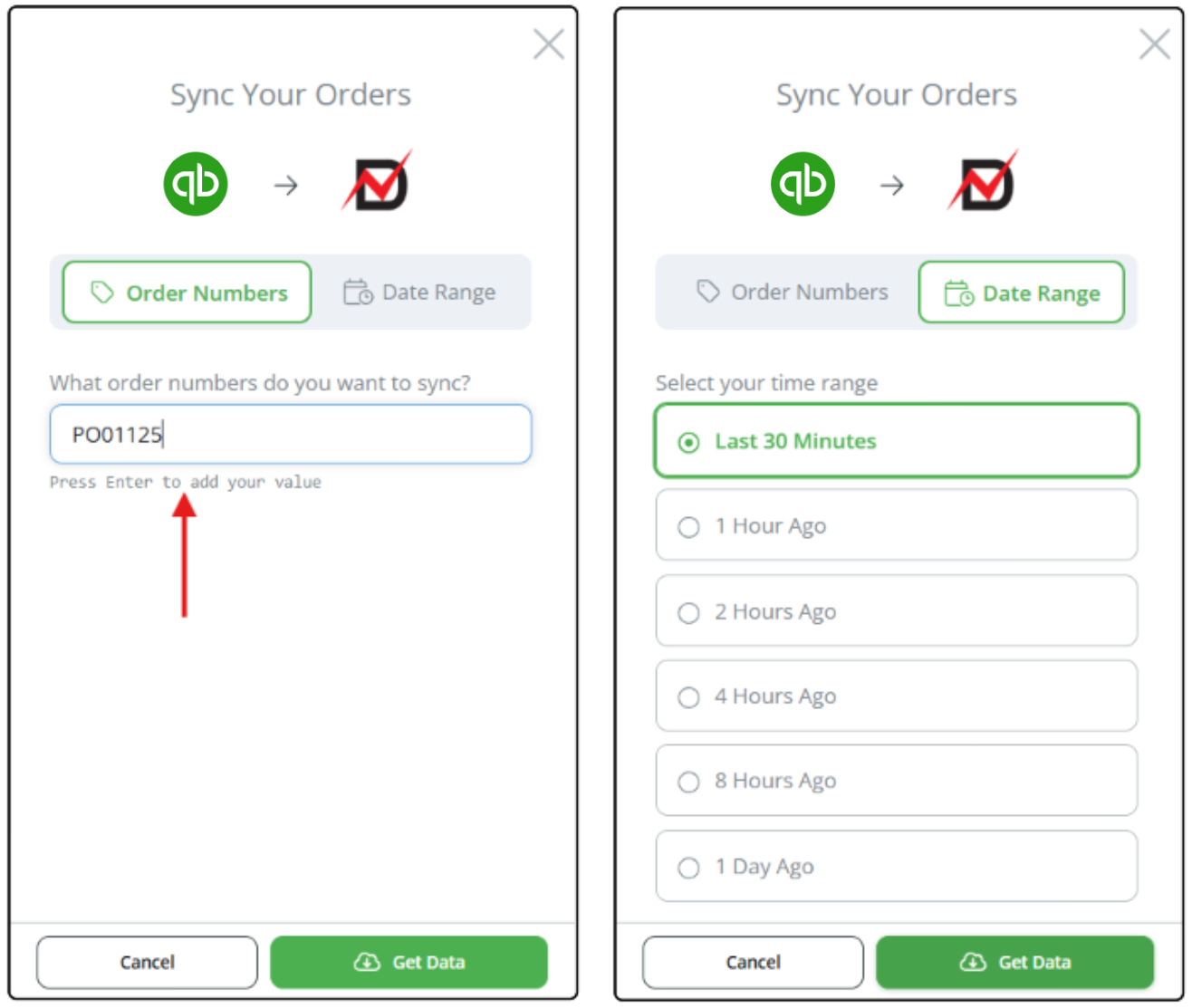
After the sync has been pushed, wait for a minute and then refresh the page; the order should now show within DataNinja. If you still do not see the order in DataNinja after refreshing the page/list, please reach out to our Support team via chat for assistance.
What About the Sync Page?
The Sync page, found in DataNinja under the gear icon in the Tools column, can still be used! The purpose of the "Sync Now" button is for highly filtered syncing, designed to be faster in pulling in the specific orders that you're looking for. If you have a large number of orders that haven't synced from QuickBooks to DataNinja and you use the Sync page to pull them all in, the wait time for all of those orders to appear in DataNinja can be longer based on the volume of orders that need to sync. So if there is an urgent need for the order(s), we recommend using the "Sync Now" button for faster results on the specific items that need to be in DataNinja.
Updated 5 days ago