
Grid Configurations
Create default filtered views for selected pages
Create default filtered views for DataNinja pages so users start with the records they need to review or act on.
Grid Configurations use DataNinja Query Language (DQL) to determine which records appear on the selected page. They are useful when teams need to consistently view a specific subset of records, such as active records, pending work, open inspections, or records assigned to a specific status.
Use Grid Configurations to reduce manual filtering, improve consistency across users, and help teams focus on records that require action.
Grid Configurations control the default records displayed on a page. Do not use them as a replacement for user roles, permissions, or access controls.
Create a New Grid Configuration
To open the Grid Configuration page, click on the gear icon, then go to 'All Lists' and find Grid Configurations. On the Grid Configurations page, click 'Add Configuration' and fill out the information in the aside to create a new configuration.
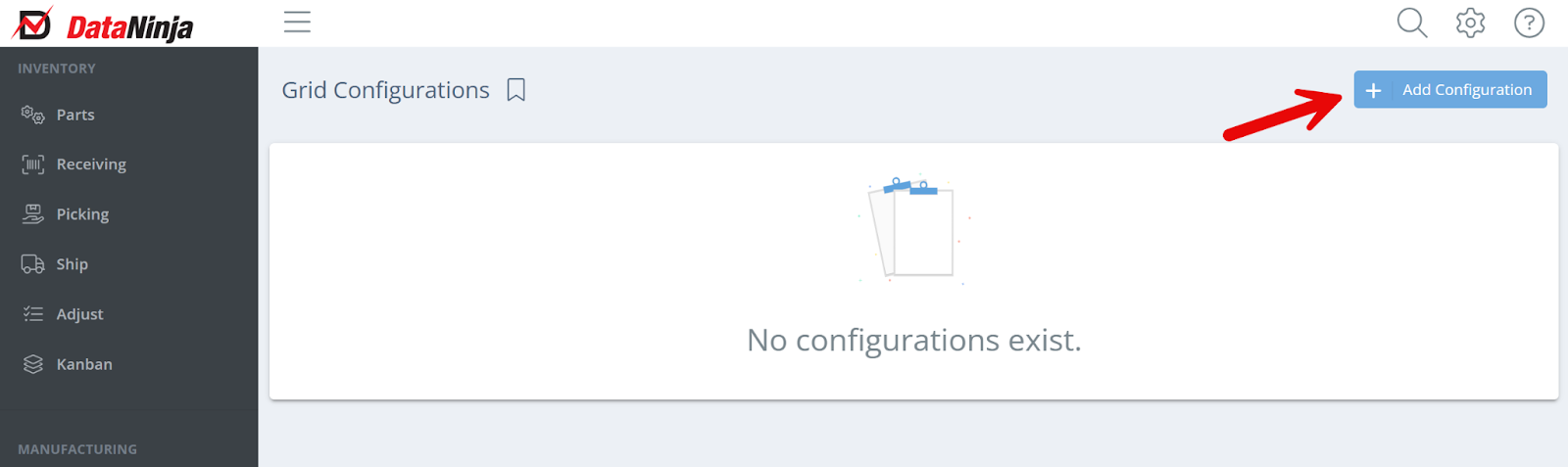
Screencap v4.21.264.341
Enter a name for the configuration; the name should be brief and to the point, as it will be visible on the page and used as the 'tab' title. See the example screenshot at the end of this section.
Default ConfigurationIf this is the first configuration for the object, good practice is to make a 'Default' or 'All' configuration, to make sure that no valid data is wholly excluded from the page. Select the object that the configuration will be based on. Commonly used objects are Part, Purchase Order, and Sales Order.
Once the object has been chosen, the DQL Filter needs to be filled out. Click on 'Fields' to see all fields that are available to be filtered on.
Click on a field to auto-enter it into the filter, then complete the filter (ex. isvalid = true). Use 'AND' or 'OR' to apply multiple fields to a filter, or 'IN' if the filter should include a range. The filter is not case-sensitive.
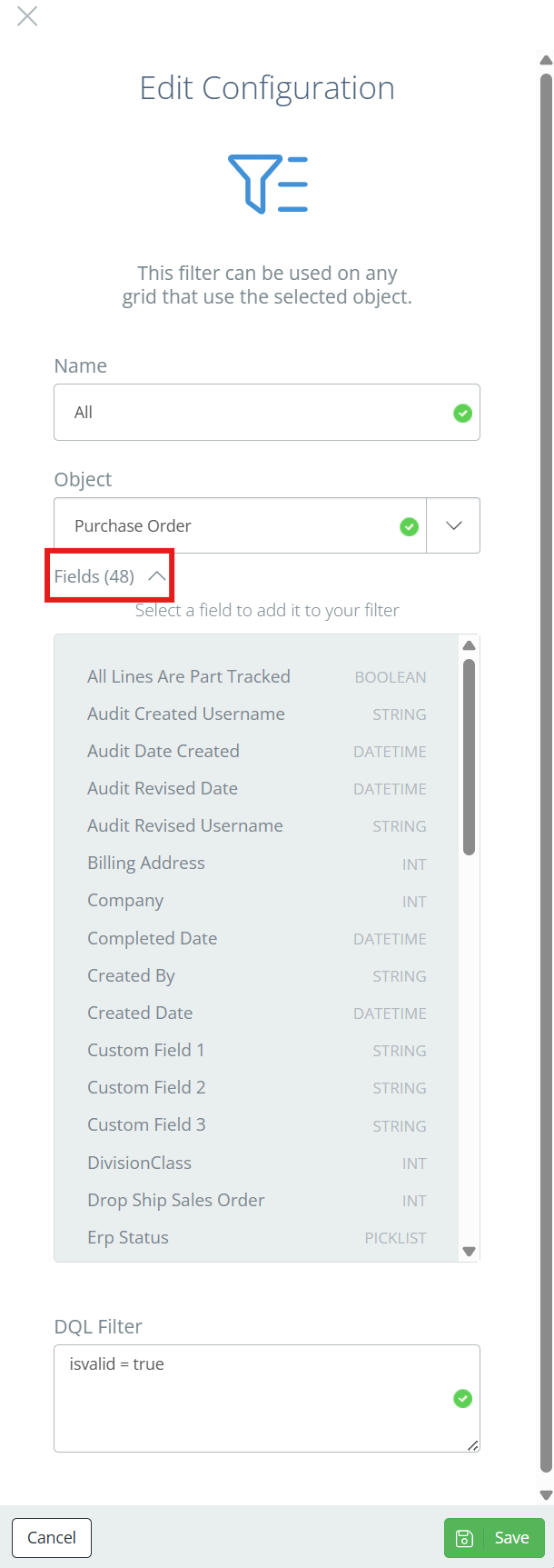
Screencap v4.21.264.341
Just like on the API page, the DQL Filter can use dot notation to reference fields on a different object than the selected one. Click Save when all filter conditions have been entered.
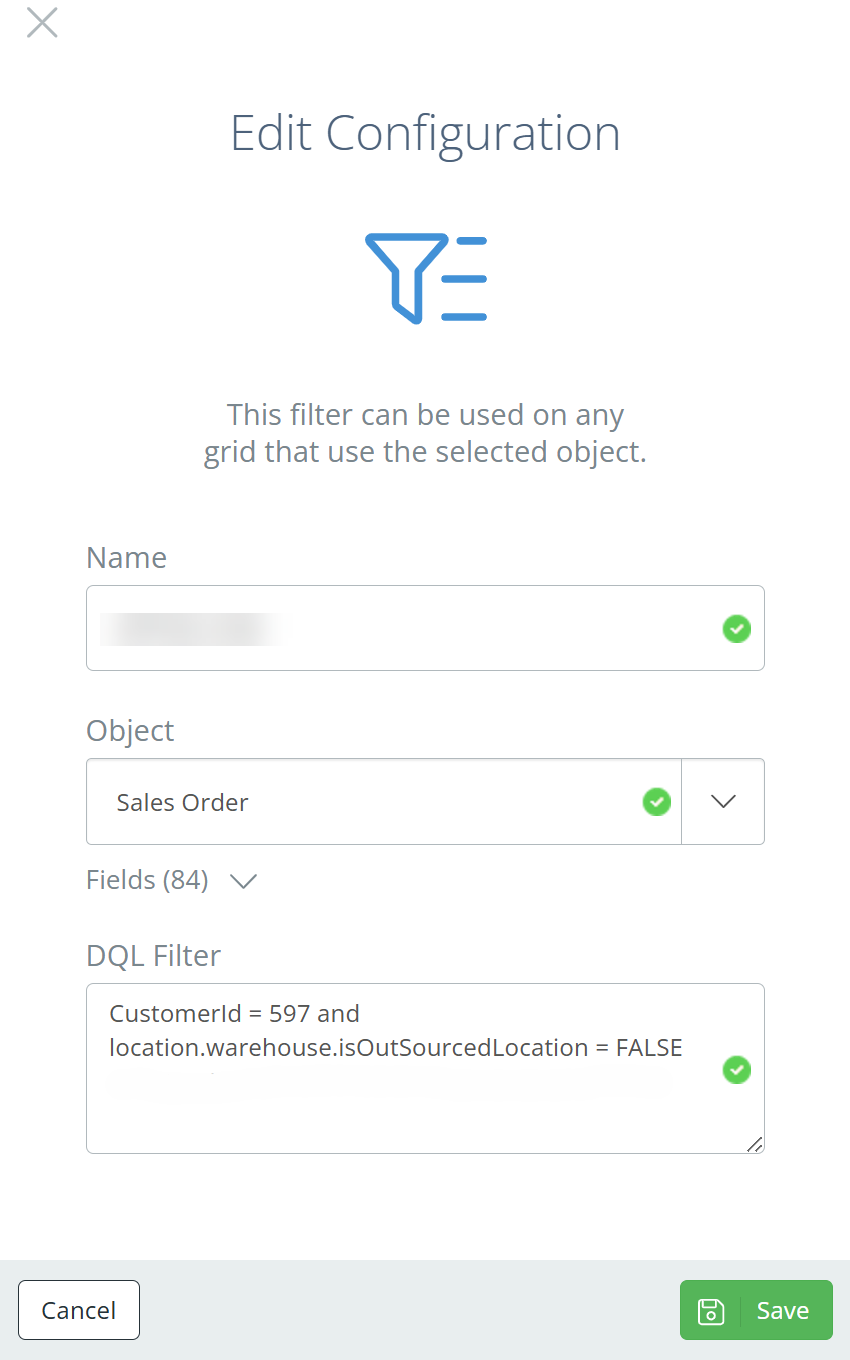
Screencap v4.21.264.341
After entering a default configuration, create a new one on the same object with more specific conditions. Double check that the configuration is successful by navigating to the relevant page and checking the tabs.
In the example below, 3 grid configurations have been created on the 'Part' object, and each tab only shows the matching part type.
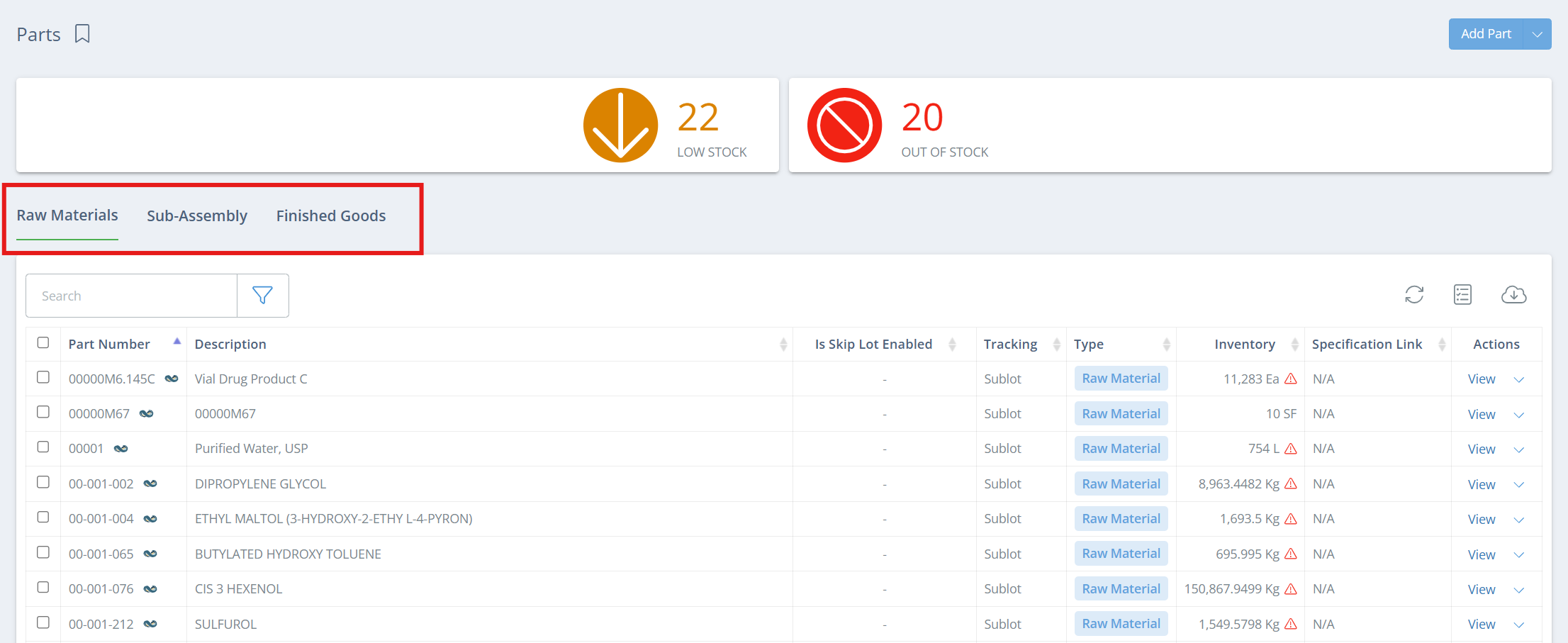
Screencap v4.21.264.341
Troubleshooting
| Issue | Possible Cause | Suggested Action |
|---|---|---|
| Expected records are missing | The filter may be too restrictive | Remove one condition at a time and retest |
| Grid shows too many records | The filter may be too broad | Add additional conditions to narrow the results |
| Configuration does not appear on the expected page | The incorrect object may have been selected | Confirm the selected object matches the intended page |
| Filter does not save or apply correctly | There may be a DQL syntax issue | Confirm field names, operators, and quotation marks |
Updated about 1 month ago