
Lot Traceability
Trace any lot back to where it came from and forward to where it went
Español: Lee esta página en español.
Français : Consultez cette page en français.
This page applies to DataNinja tenants integrated with NetSuite or QuickBooks Online, and to tenants with no finance system integration. The workflow in DataNinja is the same across integrations; where a financial system changes behavior, the integration-specific note calls it out.
Items that are synced with an integration will show the relevant integration's logo. Screenshots on this page may show the NetSuite logo, but tenants integrated with QuickBooks Online will see that logo instead. Tenants with no financial integration won't see any logo.
Lot Genealogy answers the two questions every recall, customer complaint or audit starts with: what went into this lot, and where did it go? Search for a lot, a supplier lot number, a shipment or a receipt, and DataNinja draws the whole history on one map, from the supplier lot it arrived on, through inspections and manufacturing, to the shipments that carried it to your customers. In the side menu, Lot Genealogy is called "Trace".
Beta FeatureLot Genealogy is in beta and is turned off by default. When it's on, it replaces the Production Records page. To get started, reach out to our Implementation team or open a chat with our Support team.
Turn On Lot Genealogy
Reach out to the DataNinja team via chat and request that the Lot Genealogy feature be turned on for your site.
Once it's on, the "Mfg Records" item under "Manufacturing Analytics" in the side menu becomes "Trace".
Start a Trace
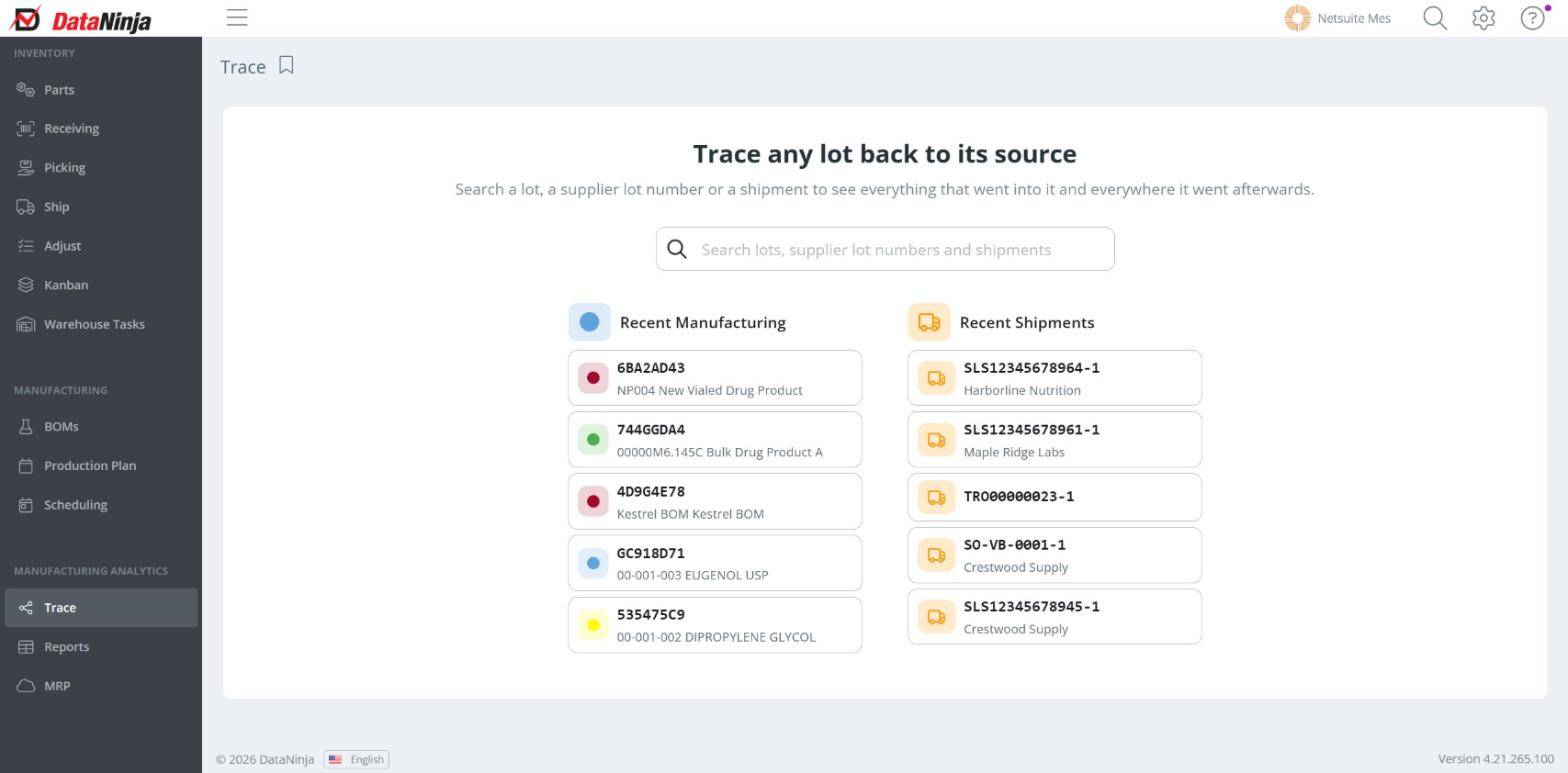
Open "Trace" from the side menu. The landing page has one search box, plus two shortcut lists: "Recent Manufacturing" (the latest completed manufacturing approvals) and "Recent Shipments" (the latest completed shipments). Click a shortcut to start a trace right away.
What You Can Search
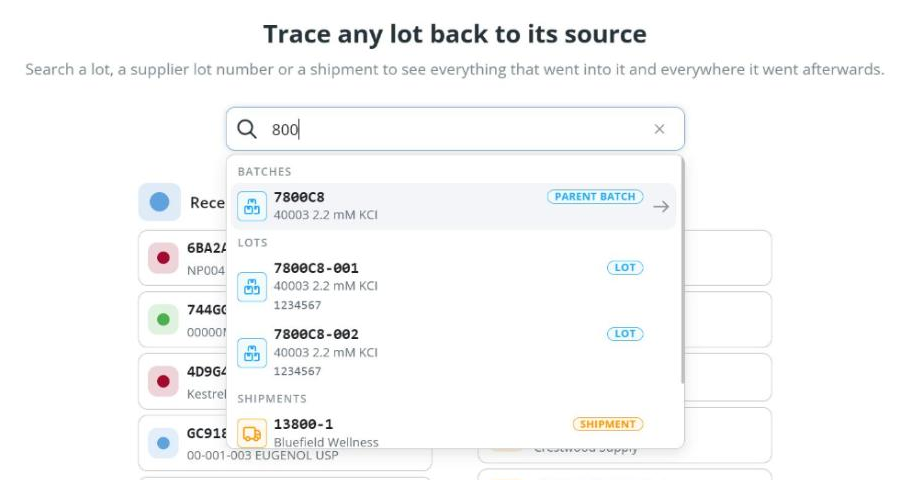
The search box matches anywhere in the text, not just at the start, and groups the results by type:
- Lots – by identifier, display identifier or manufacturer lot number
- Batches – the parent batches of matching lots
- Supplier lots – by manufacturer lot number, with a count of lots
- Shipments – by shipment number, with the customer
- Purchase Orders – by receipt number, with the vendor
Each group shows up to 12 results. If there are more, keep typing to narrow the search. Use the up and down arrow keys to move through results, Enter to open one, and Escape to close the list.
Click into the empty search box to see your open traces and your recent searches. Recent searches are kept for 72 hours.
Choose Lots From a Shipment, Receipt or Supplier Lot
A shipment, receipt or supplier lot can hold many lots, so choosing one opens a list of its lots. From there you can:
- Click "Trace the whole shipment" (or purchase order) or "Trace every lot of this supplier lot" to trace all of them together in one tab.
- Check individual lots and click "Trace in tabs" to open one tab per lot. With one lot checked, the button reads "Trace from here".
If the record holds only one lot, DataNinja skips the list and traces that lot. If a shipment only holds part-tracked items, you'll see "Nothing to trace in this shipment", because genealogy needs lot- or sublot-tracked inventory.
Read a Trace
The record you searched for sits in the middle of the map, marked with blue crosshairs. The materials that went into it are above, and everywhere it went is below. Lines always flow from a source to what it fed.
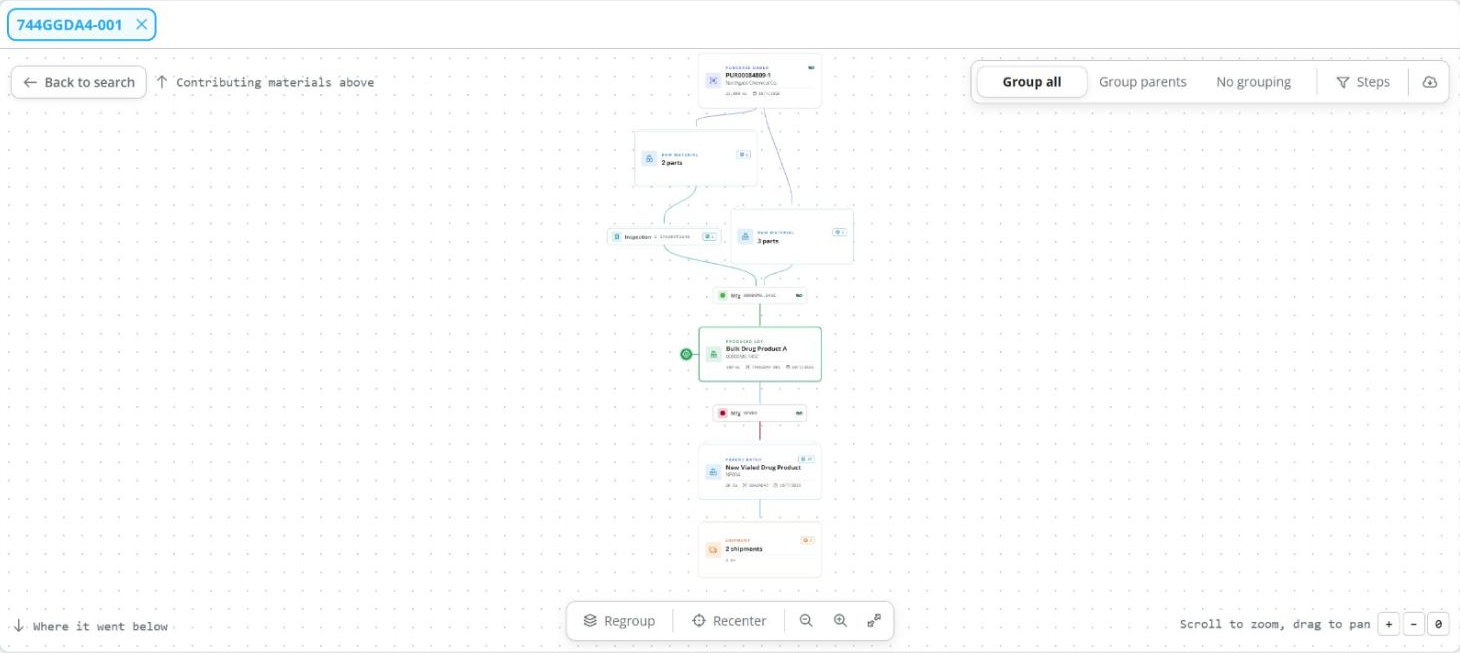
Each card on the map is one record:
| Card | What It Shows |
|---|---|
| Raw material / Parent batch / Produced lot | The part, lot identifier, quantity, origin date and pallet SSCC (when there is one). The label at the top says what role the lot plays in this trace. |
| Supplier Lot | The vendor's lot number the material arrived under. |
| Purchase Order / Quick receive / Imported | How the lot was received, with the receipt number and vendor. |
| Inspection | The receiving inspection and its status (Completed, In progress or Correction). |
| Mfg / Approval | A manufacturing batch or approval, shown in that batch's color. |
| Pre weigh / Wave | Pre-Weigh requests and pick waves the lot passed through. |
| Shipment | A shipment that carried the lot, with the customer, quantity and ship date. |
Move Around the Map
Drag the background (or use one finger on a touch screen) to pan, and use the mouse wheel, a pinch, or the zoom buttons to zoom. The arrow keys pan and the + and − keys zoom. The dock at the bottom of the map also has:
- Fit – shows the whole trace at once (or press 0)
- Recenter – takes you back to the record you searched for
- Regroup – closes every open stack
Light Up a Lineage
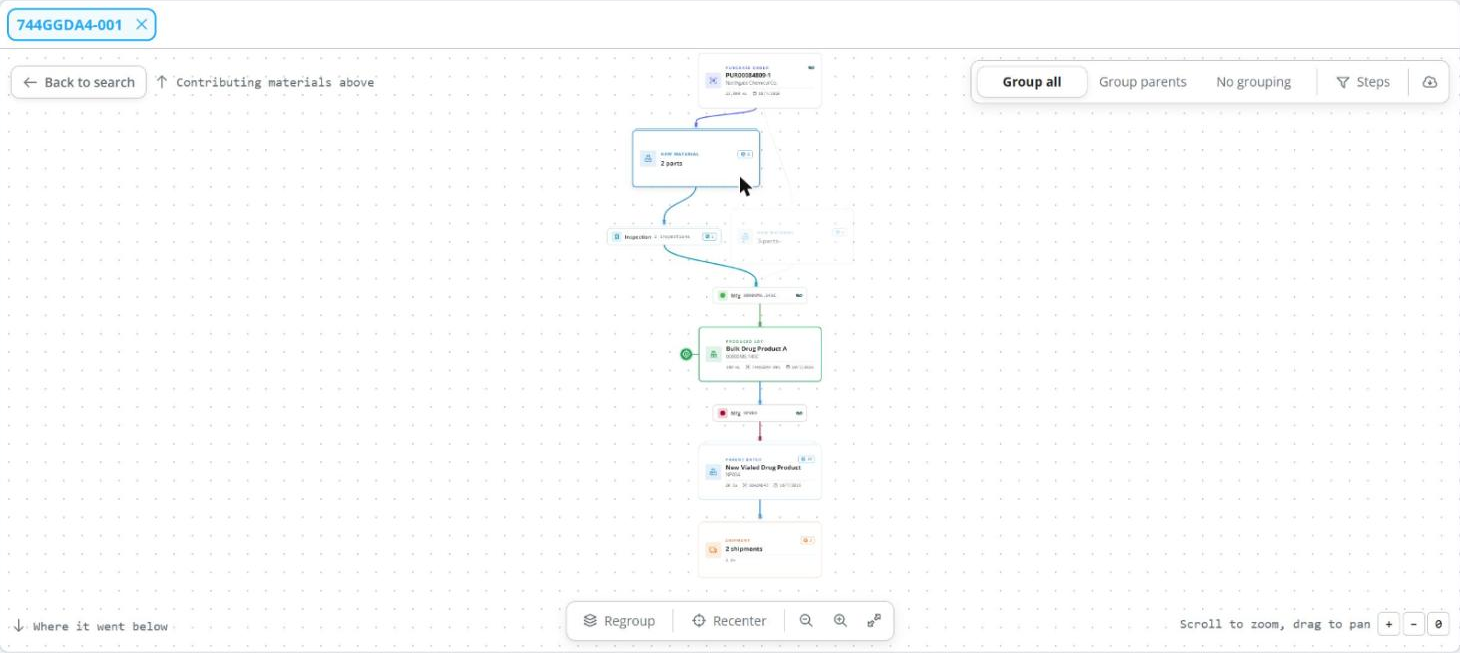
Hover over any card, or click it. Its whole lineage lights up, every ancestor above and every descendant below, and everything else dims. A dot travels along each highlighted line to show which way the material flowed. This is the fastest way to answer questions like "which shipments did this raw material end up in?"
Stacks and Grouping
A raw material used in many batches, or a batch shipped hundreds of times, would fill the screen with cards. To keep big traces readable, DataNinja folds similar cards into stacks. A stack's badge shows how many records it holds and, when they all use the same unit, the combined quantity.
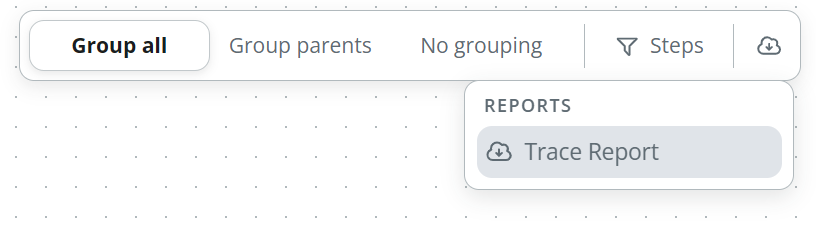
Use the grouping options on the map to choose how cards are stacked:
- Group all (default) – stacks cards of the same kind on the same row, and stacks sibling lots from the same parent batch
- Group parents – only stacks sibling lots from the same parent batch
- No grouping – shows every record as its own card
Click a stack to open it, or right-click it to choose how it opens, such as expanding it fully or splitting it by parent batch. To fold a stack back up, right-click any card that came out of it and choose "Regroup". Very large stacks load 200 lots at a time, with "Load more" for the rest.
Hide Steps You Don't Need
Click "Steps" to choose which process steps appear: Manufacturing, Pre weigh, Waves, Inspections, Purchase Orders, Quick Receives and Shipments. Hiding a step removes those cards and connects their neighbors directly, so the chain stays unbroken. While anything is hidden, the button shows how many step types are shown out of the total (for example "Steps (5/7)"). The record you searched for is never hidden.
See a Record's Details
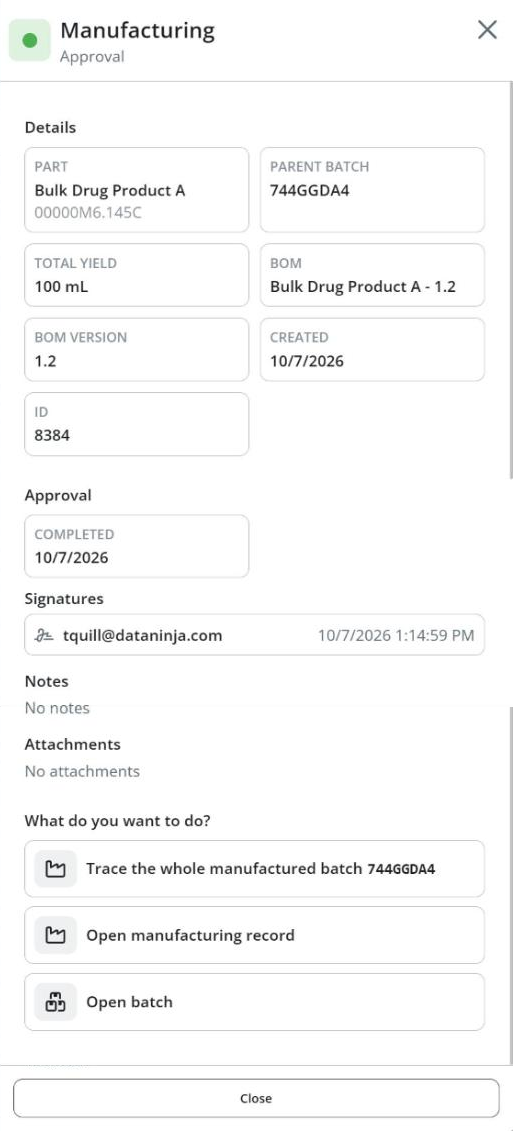
Click a card, or right-click it and choose "Show details", to open the detail panel. It shows everything recorded about that record:
- Lots – identifier, part, manufacturer lot number, quantity on hand, expiration date, pallet SSCC, and the remaining and consumed reservations against its parent batch
- Manufacturing approvals – part, parent batch, total yield, the Bill of Materials (BOM) and its version, dates, and each approval's e-signatures, notes and attachments
- Inspections – inspected and received quantities, the sublots inspected, and the inspection approval
- Waves – what was picked, how much, and who picked it
- Pre weigh – the quantity weighed, who weighed and verified it and when, the unit, and the printer
- Shipments and receipts – the customer or vendor, ship date, tracking number and quantity
At the bottom, "What do you want to do?" lists next steps. "Trace from here" opens a new tab starting from that record, and "Trace whole batch" traces every lot in the batch. You can also jump straight to the batch, manufacturing record, inspection, purchase order or shipment.
Work With Tabs
Every trace opens in its own tab, so you can compare traces side by side. You can have up to 12 tabs open, and they come back if you refresh the page within an hour. If your tabs are gone, reopen the traces from your recent searches.
The address bar updates as you switch between lot tabs, so you can copy the link and send it to a coworker to open the same lot.
Download a Trace Report
The cloud button on the map opens "Reports", which lists the trace reports set up for your company. Choose one to download a report of the record the current tab traced. The report covers the full trace, not just the cards currently drawn on the map. It downloads as a PDF when the report has a print layout, and as an Excel file otherwise.
The cloud button only appears once your company has at least one trace report. If you don't see it, open a chat with our Support team.
Training Video
This video was created with AI on a DataNinja test site. Your site may look slightly different depending on your settings and version.
Common Scenarios
A Supplier Says a Lot Is Bad (Forward Trace)
- Open "Trace" and type the supplier's lot number.
- Choose it under "Supplier lots", then click "Trace every lot of this supplier lot".
- Read downward: which manufacturing batches used it, what they produced, and which shipments went to which customers.
- Hover over the supplier lot to light up everything it touched, and open the stacks that matter.
- Download a trace report for your recall list.
A Customer Complains About a Shipment (Backward Trace)
- Search for the shipment number, then choose a lot or "Trace the whole shipment".
- Read upward: the produced lot, the manufacturing approval (open it to see signatures and notes), the raw materials and their inspections, and the supplier lots and receipts they arrived on.
- Click any raw material and choose "Trace from here" to see which other batches used the same material.
For a full recall rehearsal, see How to Do a Mock Recall.
Things to Know
The "Purchase Orders" search group matches receipt numbers, not PO numbers. Search the receipt number, the lot, or the supplier lot number instead.
License plates, pallet SSCCs and scanned GS1 barcodes can't be searched yet. Search for the lot identifier printed on the label.
The NetSuite and QuickBooks Online badges on receipts, shipments and manufacturing cards show sync status only. A warning triangle means that record hasn't synced yet.
- Huge traces are capped. DataNinja draws the 500 records closest to the one you searched for and shows a notice when some were left out. Use "Trace from here" on a lot closer to what you need to explore a smaller branch.
- Incomplete traces. If part of a trace doesn't load, you'll see "This trace is incomplete." Try again, and if it keeps happening, open a chat with our Support team.
- No total on a stack. A stack only shows a combined quantity when every record in it uses the same unit. Open the stack to see each quantity.
- A step is missing. Check whether that step type is hidden under "Steps", or switch to "No grouping" in case the card is inside a stack.
- Phones. On a phone, the trace fills the screen. Grouping, Steps and Reports move behind the gear icon, and you can pinch to zoom and drag with one finger to move.
Updated 20 days ago