
How to Add a Kanban
Español: Lee esta página en español.
Français : Consultez cette page en français.
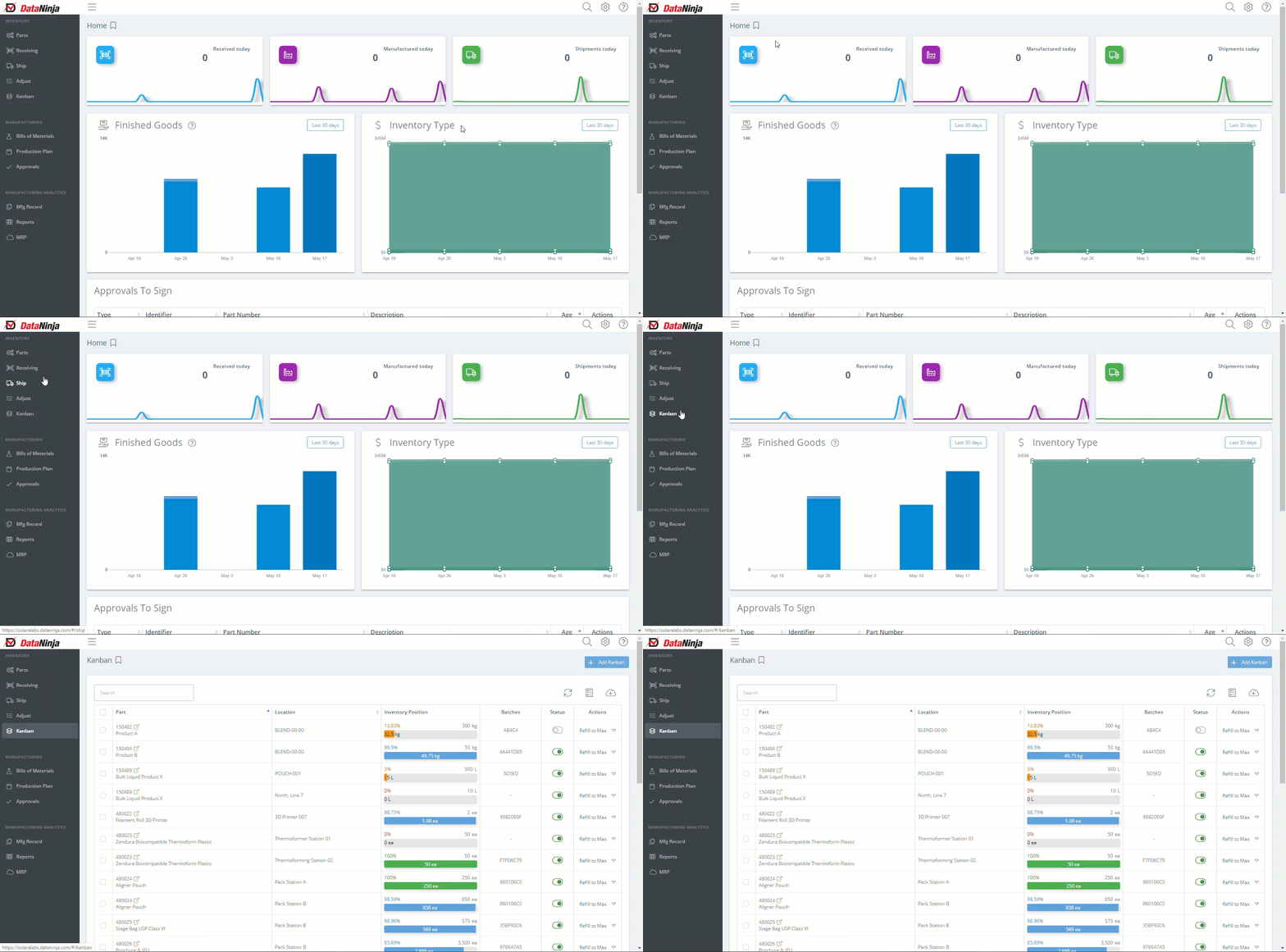
- Click the “Kanban” tab on the left menu in DataNinja.
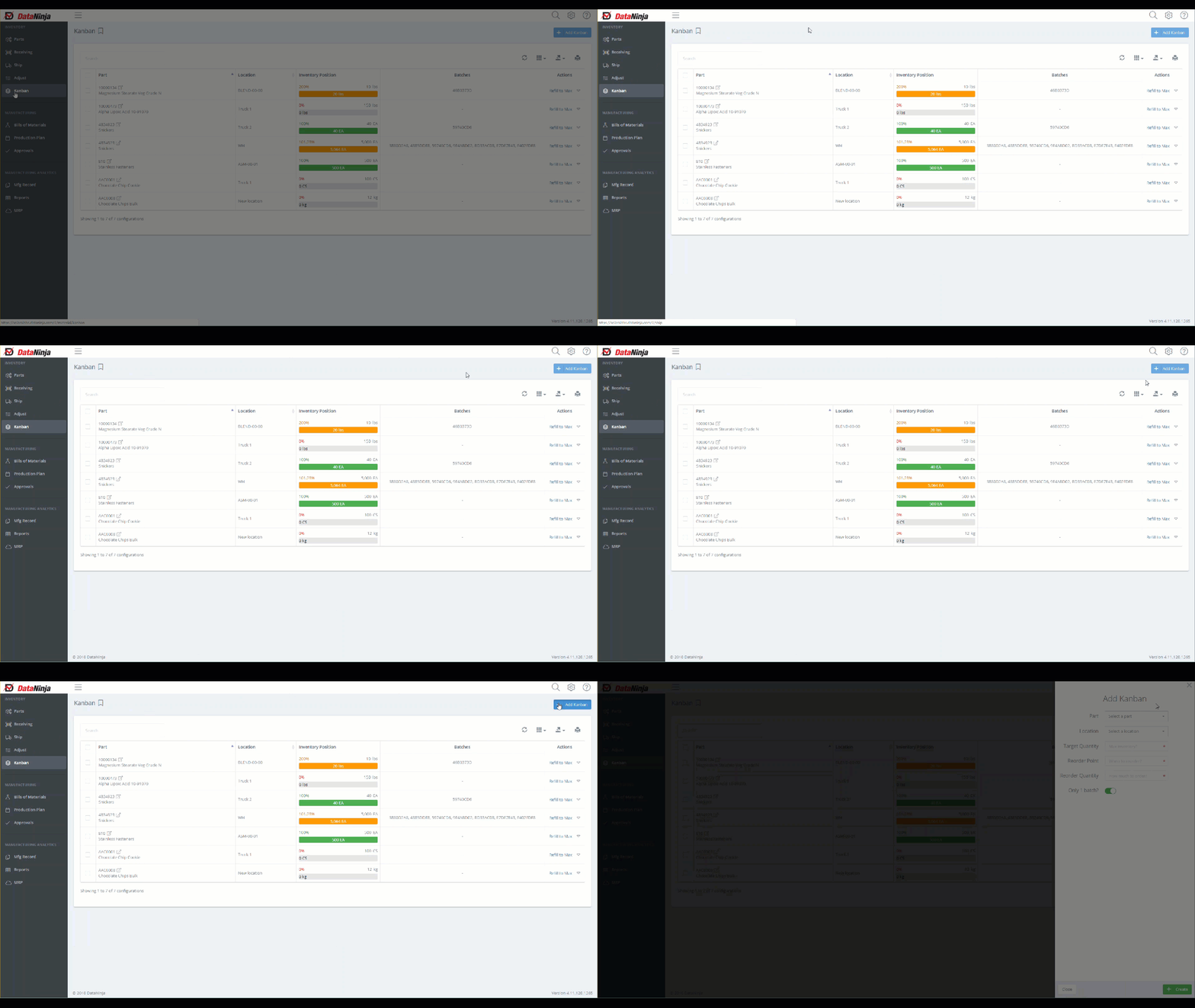
- Click “Add Kanban” in the top right corner.
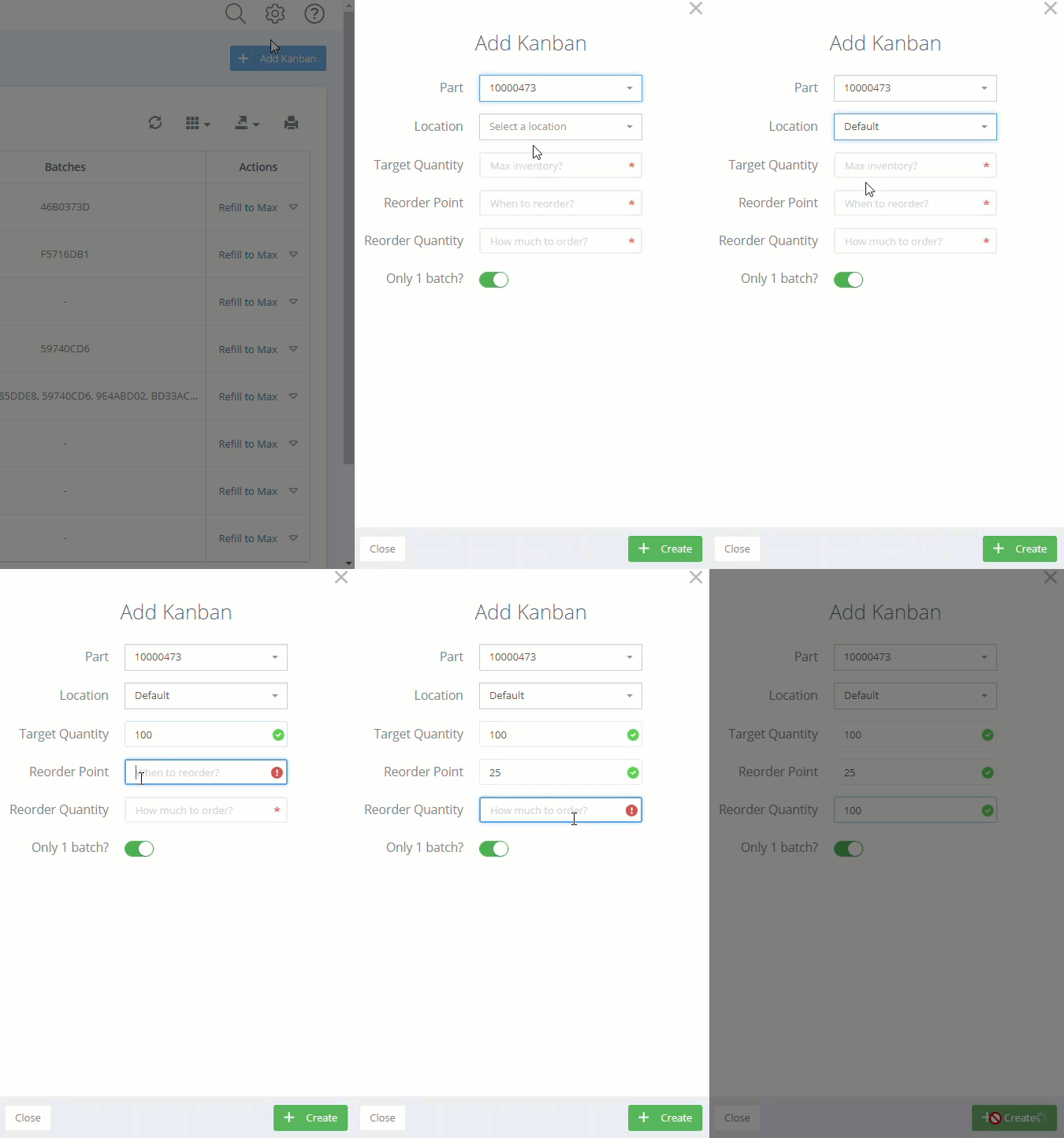
- Fill in the required fields, then click “Create”.
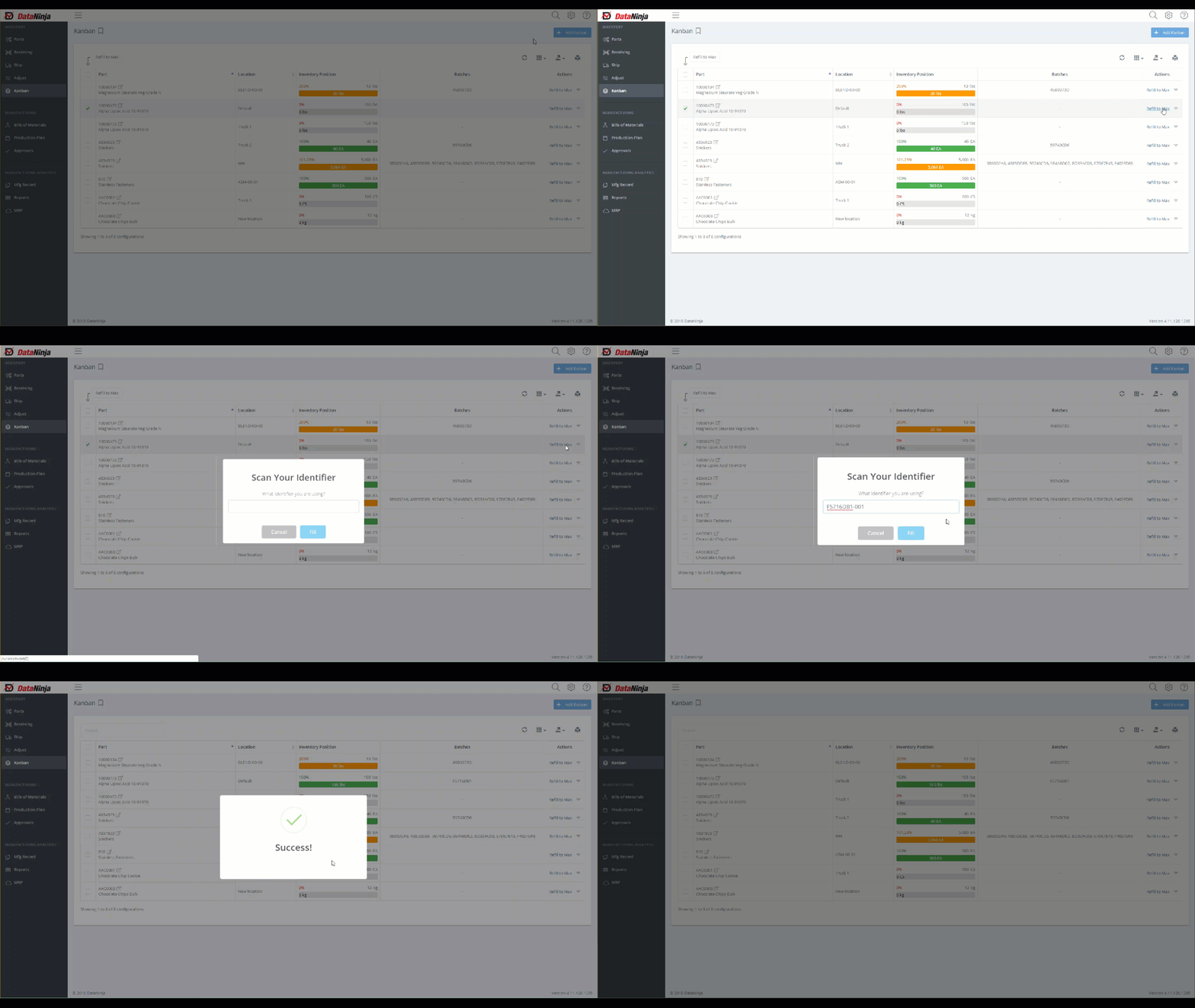
The new Kanban will now be displayed on the Kanban page and you can add new inventory by clicking the “Refill to Max” button on the right side. Scan the label for the item you want to add to the Kanban and click “Fill”.
Updated 13 days ago