
Changing the Status of a Part
Change to Failed/Scrapped, Hold, In Process, Pending, and, Released.
Español: Lee esta página en español.
Français : Consultez cette page en français.
Changing the Status of a Part
The status field in DataNinja allows you to control what happens with your materials from when they are received, through each step of the production process, and until they are shipped. You can release a whole shipment of new materials after they go through your incoming inspection quality assurance procedure or electronically lock out any material preventing it from mistakenly being used in production or sold.
To change the status of any part find a DataNinja searchable identifier for the part. As long as you have a supplier lot number, a barcode/identifier, or license plate number (LPN) you can quickly look up the material in question.

Find and double-click on the Identifier to the batch This will bring up all of the material associated with that identifier. You can select the individual lots that need to be changed, or change all of them at the same time.
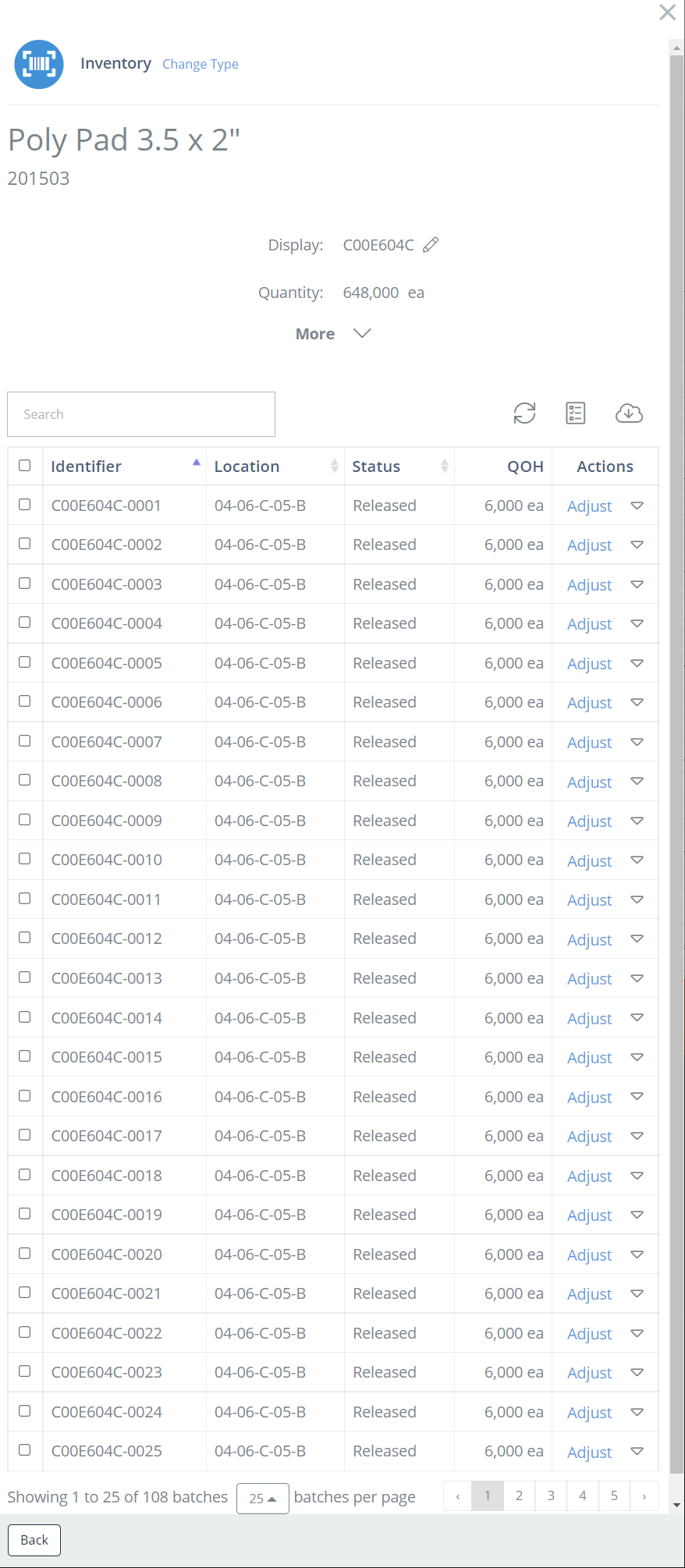
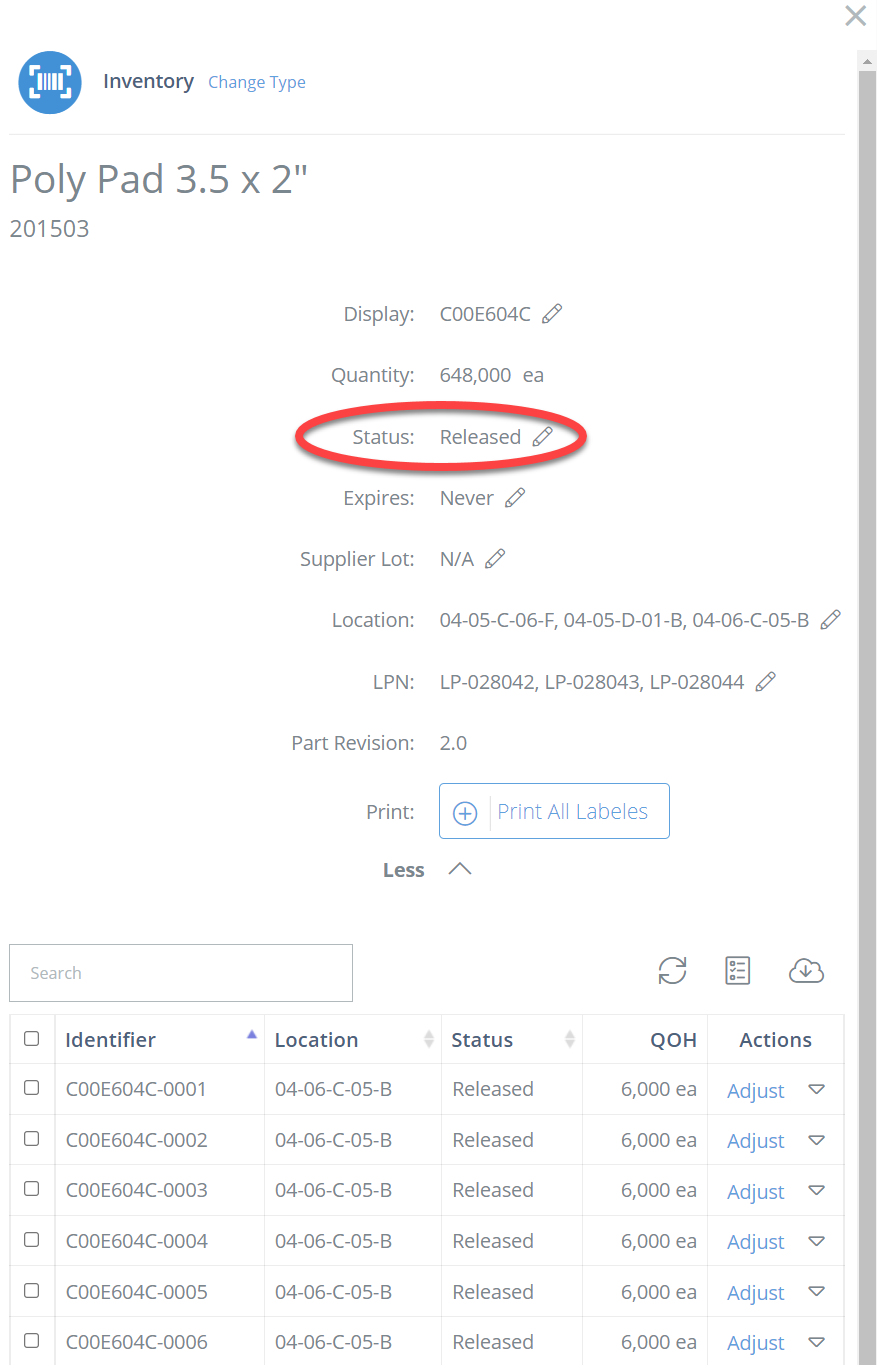
When you are ready to make a change, click on more, then click on the pencil to the right of status.
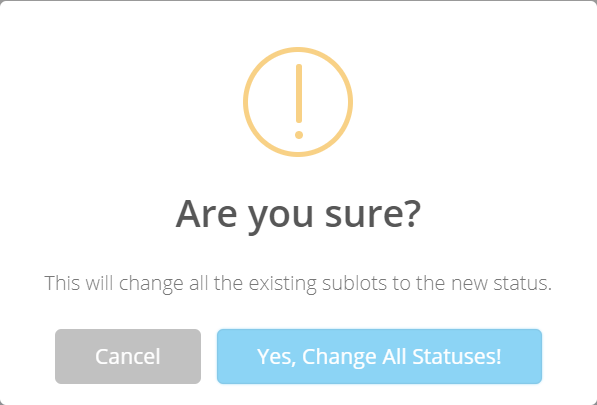
When you see the pop-up below click on Yes, change all statuses.
Now change the status.
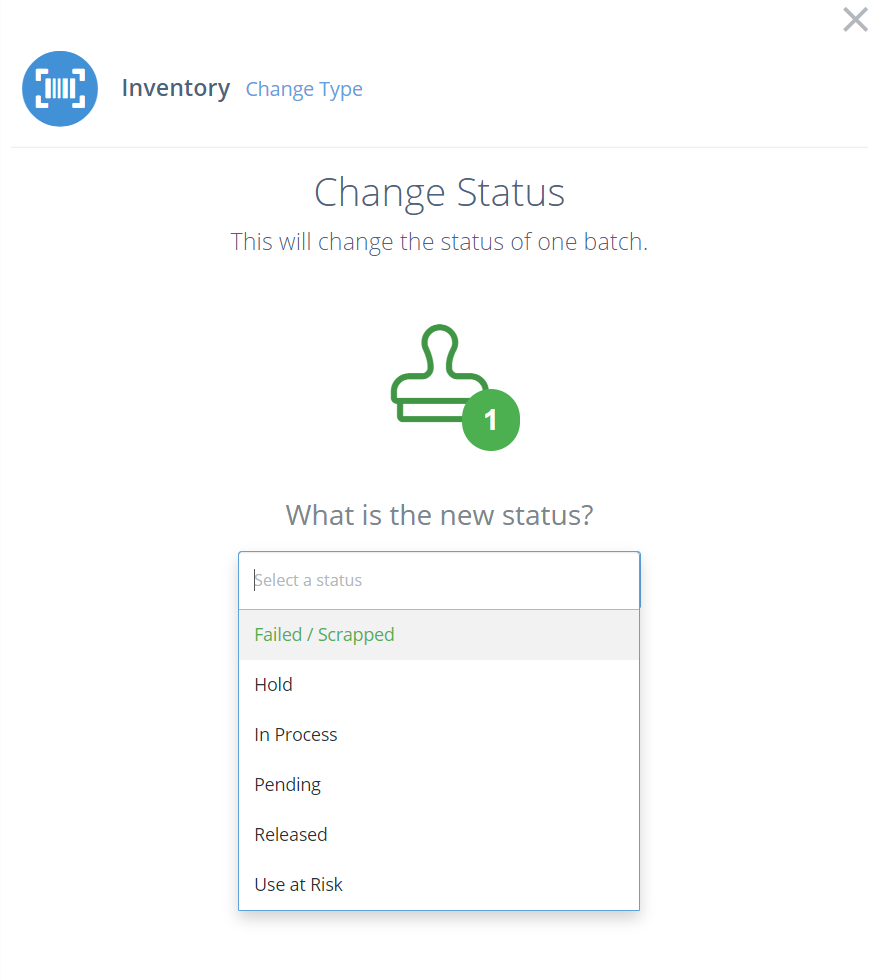
You can customize the existing status names and what they allow you to do in Batch Lifecycles.
Updated 13 days ago